Here is the short answer first. Yes, you can build a working BMI calculator with Google AI Studio without writing a line of code and without paying anything. You describe the tool in plain English, AI Studio builds it, and you get a page where anyone can type in their height and weight and get their BMI number plus their category — underweight, healthy, overweight or obese — on the World Health Organization scale and on the lower cut-offs used for Indian adults. The whole thing takes about half an hour if you go slowly, and the only account you need is a Google account.
Two honest notes before the steps. First, I did not build and run this exact app in AI Studio for this guide, and I did not watch a real BMI calculation come out of a live Build-mode session. The steps below come from Google's own AI Studio documentation, read live on 27 November 2026, and the test section gives you a ten-minute protocol — six known values with the right answers worked out by hand — so you can confirm the tool yourself before you trust it or share it. Second, about the gap itself: page 1 for the exact phrase "how to build BMI calculator app with Google AI Studio free" has no written step-by-step guide that builds a BMI calculator. The strongest result is a Framer case study of a health-coach app where BMI is only one calculated field inside a bigger app, plus a YouTube video of a fitness app with a BMI calculator inside it, plus generic AI Studio overviews. A video is not a written guide, and a BMI field inside a diet-plan app is not a BMI calculator. That is the gap this guide fills.
What "free" means here
Three different things are free in this setup, and they are not the same thing, so it helps to separate them before you start.
The first is AI Studio itself. Google's own billing documentation says, in plain words, "AI Studio usage remains free of charge unless users link a paid API key for access to paid features." You sign in at aistudio.google.com with a Google account and you can use the interface, write prompts and build apps without paying. You only start paying when you link a billing account to a project and prepay — Google's billing page says new paid accounts prepay at least $5 to start. There is no monthly AI Studio subscription to buy.
The second is the models. Not every Gemini model is free. On the free tier you get the Flash and Flash-Lite models and Gemini 4 Hydrogen, which Google lists as the Gemini 4 model with a free tier. The flagship model, Gemini 4 Argon, is not available on the free tier at all. For a BMI calculator this does not matter — the maths is a division, not a reasoning task — and the free models are more than enough to generate the app.
The third is publishing. Google's deployment documentation says the Starter Tier "lets eligible accounts publish up to 2 full-stack applications without setting up a Google Cloud project or billing account." Two apps, no billing, no Cloud project. That is the route this guide uses. Two limits on it are worth knowing now rather than later: some accounts are not eligible — Google names Google Workspace accounts and accounts with an active or past paid Google Cloud billing account — and Google adds that support "can't override Starter Tier eligibility." If you already have two apps live on the Starter Tier, you have to unpublish one or upgrade to a paid account. The other two publish routes are downloading the code as a ZIP file and hosting it somewhere else, or deploying to Cloud Run, where Google Cloud pricing may apply.
There is one more free-tier condition that matters for a health tool. On the free tier, Google's pricing page says your content is used to improve its products, and the Gemini API terms add that human reviewers may read, annotate and process your input and output, and that you should not submit sensitive, confidential or personal information. A BMI calculator takes height and weight — health information. So build and test it with made-up numbers, never with real clients' measurements, and never paste a customer list into it. If the tool ever handles real people's data, that is the point to move to a paid key.
What BMI actually is
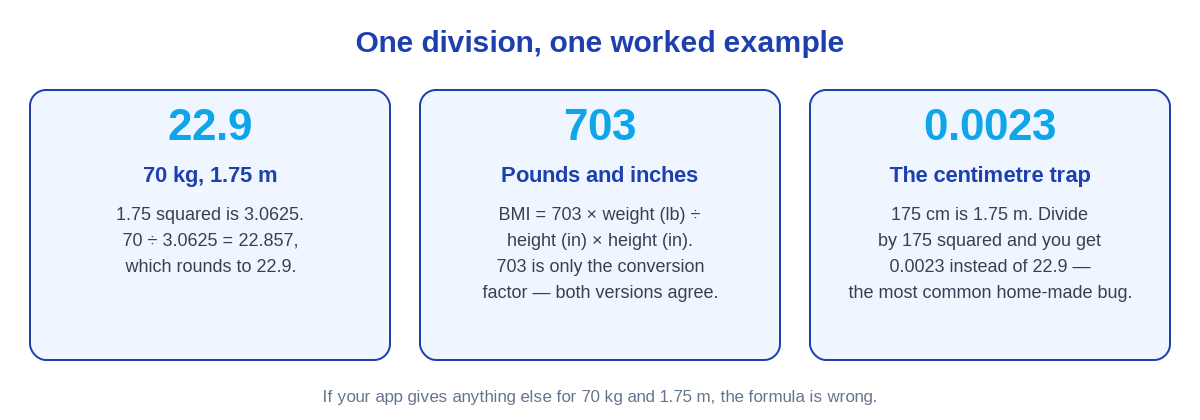
BMI stands for body mass index. It is one division: your weight in kilograms divided by your height in metres squared.
BMI = weight (kg) / height (m) x height (m)
If you use pounds and inches instead, the formula is BMI = 703 x weight (lb) / height (in) x height (in). The 703 is just the conversion factor that makes the two versions agree.
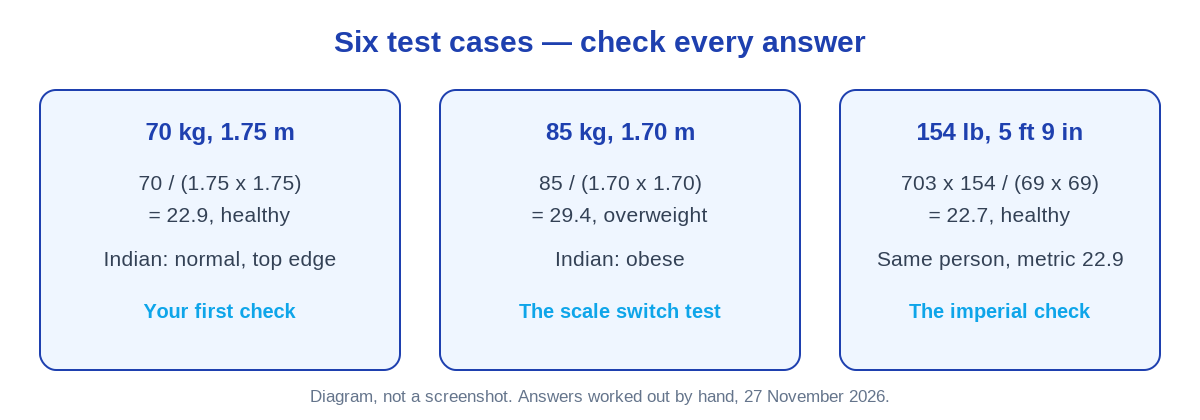
Take a worked example you can check with any calculator. A person who weighs 70 kg and is 1.75 m tall: 1.75 squared is 3.0625, and 70 divided by 3.0625 is 22.857, which rounds to 22.9. That is the number your app must produce for those inputs. If it gives anything else, the formula is wrong.
The number on its own means nothing. It only means something against a category table, and there are two tables that matter for this tool — the international one and the one used for Indian adults. They disagree, and the disagreement is the whole reason the calculator needs a toggle.
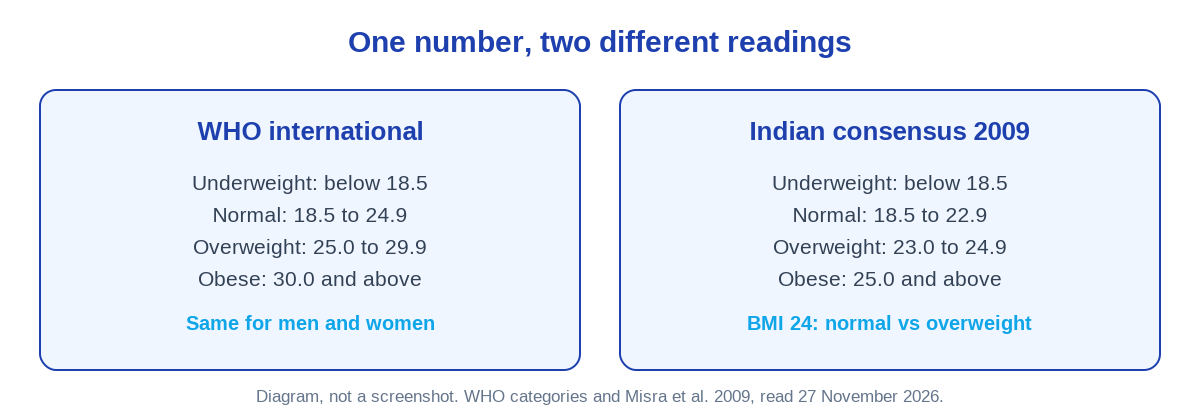
The World Health Organization categories, from WHO's own nutrition information system, are: under 18.5 is underweight; 18.5 to 24.9 is normal weight; 25.0 to 29.9 is overweight; 30.0 and above is obesity. Obesity is split further into class I (30.0 to 34.9), class II (35.0 to 39.9) and class III (40.0 and above). Those cut-offs are the same for men and women and for all adult ages.
The Indian cut-offs are lower. The Indian Consensus Group's 2009 statement (Misra and colleagues, published in the Journal of the Association of Physicians of India) defined 23 to 24.9 as overweight and 25 and above as obesity for Asian Indian adults. The same consensus gives waist-circumference cut-offs for abdominal obesity: above 90 cm for men and above 80 cm for women. The reason is measured, not cultural: at the same BMI, South Asian adults carry more body fat and develop type 2 diabetes and heart disease earlier than European adults. A WHO expert consultation in 2004 reached the same conclusion and added public-health action points at 23.0 and 27.5 along the scale.
So the same person gets two different readings. Our worked example, 70 kg at 1.75 m, is 22.9: healthy on the WHO scale, and right at the top edge of normal on the Indian scale (18.5 to 22.9). A BMI of 24 is "normal" internationally and "overweight" for an Indian adult. A BMI of 29.4 is overweight internationally and obese on the Indian scale. A calculator that only shows the WHO table quietly misleads an Indian user, and a calculator that only shows the Indian table confuses everyone else. Build both, and let the reader switch.
The last thing to get straight before building is what BMI is not. It is a screening tool, not a diagnosis. It does not measure body fat, it does not tell muscle apart from fat, and it does not know your waist size, your blood pressure or your family history. A muscular person can score as overweight while carrying very little fat, and an older person can score as normal while carrying too much fat around the waist. The 2025 Lancet commission on obesity and a revised Indian definition published the same year both say the same thing in different words: BMI alone should not be used to diagnose obesity in an individual. The cut-offs also do not apply to children and teenagers, who are assessed on growth charts, or to pregnant women. Your calculator should say all of this on the results screen, in plain words, next to the number — not buried in a footer.
What the calculator must do
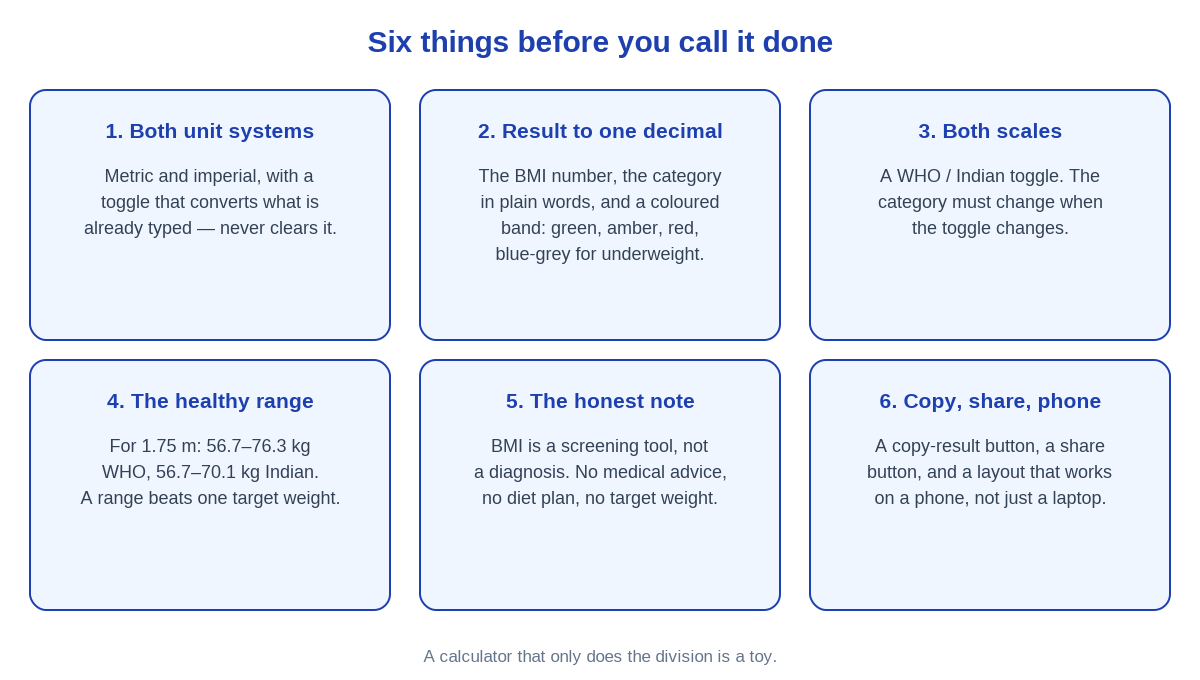
Before you write the prompt, decide what "done" looks like. A BMI calculator that only does the division is a toy. Here is the list to build against, in order of importance.
First, the inputs. Height and weight in metric (kilograms and centimetres) and in imperial (pounds, feet and inches), with a toggle that converts what is already typed instead of clearing it. A height field that accepts centimetres must convert them to metres before dividing — 175 cm is 1.75 m, and dividing by 175 squared gives 0.0023 instead of 22.9, which is the single most common bug in home-made BMI tools.
Second, the result. The BMI number to one decimal place, the category in plain words, and a coloured band — green for healthy, amber for overweight, red for obese, blue-grey for underweight. The colour is not decoration; it is how most people read the answer.
Third, both scales. A second toggle for WHO or Indian cut-offs, with the category changing when the toggle changes and the two tables shown underneath so the reader can see why.
Fourth, the healthy range. For the height entered, show the weight range that counts as healthy — for 1.75 m that is 56.7 to 76.3 kg on the WHO scale and 56.7 to 70.1 kg on the Indian scale. A range is more useful than a single target weight, because it tells the reader how far they are from the band, not from one number.
Fifth, the honest note. One short paragraph on the results screen: BMI is a screening tool, not a diagnosis, it does not measure body fat, and anyone with a result that worries them should talk to a doctor. No medical advice, no diet plan, no "you should lose X kg" — the tool reports a number and a category, nothing more.
Sixth, the small touches that make people actually use it: a copy-result button, a share button, and a layout that works on a phone, because most people will open this on their phone, not a laptop.
Build your BMI calculator with AI Studio, step by step
Here is the whole build, in the order you do it. Nothing here needs code, and nothing needs a card.
Step one, sign in. Go to aistudio.google.com and sign in with a Google account. You must be 18 or older to use these services — that is in the Gemini API terms, not a suggestion. Use a personal Google account for this project, not a work or school one, because the free tier and the Starter Tier eligibility are tied to the account.
Step two, open Build mode. On the left sidebar, open Build. Google's own description of it is short: "Describe what you want to build with a prompt, and Gemini will generate an app for you." You have four ways to begin: type a prompt, press the "I'm Feeling Lucky" button and let Gemini invent a project idea, remix an app from the gallery, or import code from GitHub. For this build, type a prompt — the one in the next section.
Step three, paste the prompt and build. Paste the whole prompt from the next section into the prompt box and press Build. Gemini writes the code and shows you a live preview on the right side of the screen. The first version will take a minute or two. Do not judge it until the preview has finished loading — the layout settles after the code finishes running.
Step four, fix one thing at a time. This is the step most people get wrong. If the colour is wrong and a button is in the wrong place and the imperial toggle clears the fields, do not list all three in one message. Send one small change, wait for the preview to update, then send the next. Google's docs describe an annotation mode that "lets you highlight any part of your app's UI and describe the change you want," so you can point at the toggle and say "make this keep the typed values when I switch units" instead of describing it in words. Behind the scenes, Google says the Antigravity agent now powers Build mode and keeps track of the whole project while it edits many files at once — but it still does its best work one change at a time.
Step five, test it. Run the six test cases in the test section below and the three edge cases. If any answer is wrong, tell the app exactly what you typed and what it gave you, and ask it to fix the formula. Do not move on until all six pass.
Step six, save it. Before you make any big change, save your work — sync it to GitHub or download it as a ZIP file. Saving first means a bad edit costs you a minute instead of an afternoon.
Step seven, publish it. The free route is the Starter Tier: eligible accounts can publish up to two full-stack apps with no Cloud project and no billing account. If your account is not eligible — a Workspace account, or one with an active or past paid Cloud billing account — the Starter Tier will not be offered, and Google says support cannot override that. In that case, download the ZIP and host it somewhere else, or deploy to Cloud Run and watch the pricing. When it is live, share the link, not a screenshot: a link lets people use the tool, and every use is a test.
The copy-paste prompt
Here is the prompt to paste into Build mode. It is written to be copied whole. It names the user, the inputs, the formula, the two category tables, the layout, and the things the app must never do. The formula is spelled out in words and numbers so the model cannot guess it.
Build a single-page BMI calculator web app for beginners, fitness trainers and small-business owners. No sign-in, no account, no data saved anywhere. Mobile-first: it must work well on a phone held in one hand.

INPUTS
- Two unit systems with a toggle: Metric (weight in kg, height in cm) and Imperial (weight in lb, height in feet and inches).
- Switching units must convert the values already typed, never clear them.
- Height in cm must be converted to metres before the calculation: height_m = height_cm / 100.
- Block the calculation and show a plain message if height is zero or missing, if weight is zero or missing, or if any value is negative.

CALCULATION — use exactly this, do not invent a different formula
- Metric: BMI = weight_kg / (height_m x height_m).
- Imperial: BMI = 703 x weight_lb / (height_in x height_in).
- Show the BMI number rounded to one decimal place.

RESULT
- Show the category in plain words, with a coloured band: underweight (blue-grey), healthy (green), overweight (amber), obese (red).
- A second toggle switches the category table between WHO and Indian cut-offs. The category must update when the toggle changes.
- WHO table: underweight below 18.5; normal 18.5 to 24.9; overweight 25.0 to 29.9; obese 30.0 and above.
- Indian table: underweight below 18.5; normal 18.5 to 22.9; overweight 23.0 to 24.9; obese 25.0 and above.
- Under the result, show both tables so the reader can see why the two scales disagree.
- Also show the healthy weight range for the height entered: the weight in kg that gives a BMI of 18.5, and the weight that gives a BMI of 24.9 on the WHO scale (and 22.9 on the Indian scale when that toggle is on).

HONEST NOTE — show this on the results screen, not in a footer
- "BMI is a screening tool, not a diagnosis. It does not measure body fat and does not tell muscle apart from fat. If a result worries you, talk to a doctor."
- Do not give medical advice, do not give a diet plan, and do not tell the reader to lose or gain a specific number of kilograms.

EXTRAS
- A copy-result button that copies "My BMI is 22.9 (healthy, WHO scale)" style text.
- A share button.
- Big buttons, large readable numbers, clean white and deep-blue design.
Two things in that prompt deserve a second look. First, the formula is written out in full, twice, with the cm-to-metres conversion stated as its own line. That is deliberate: the most common failure in an AI-built calculator is a quietly wrong formula, and the only defence is to state the formula so precisely that there is nothing to guess. Second, the prompt forbids medical advice in the same place it asks for the result. A model left to itself will often add a cheerful "you should lose 5 kg" line under the result. Telling it not to, in the prompt, is cheaper than removing it afterwards.
Test it against known values
Do not trust the first preview. Run these six cases and check the answers by hand. Every number below was worked out with a calculator on 27 November 2026, and each one is shown with the working so you can repeat it.
| Person | Inputs | Right answer | Category (WHO) | Category (Indian) |
|---|---|---|---|---|
| 70 kg, 1.75 m | 70 / (1.75 x 1.75) = 22.9 | 22.9 | Healthy | Normal (top edge) |
| 85 kg, 1.70 m | 85 / (1.70 x 1.70) = 29.4 | 29.4 | Overweight | Obese |
| 60 kg, 1.65 m | 60 / (1.65 x 1.65) = 22.0 | 22.0 | Healthy | Normal |
| 95 kg, 1.80 m | 95 / (1.80 x 1.80) = 29.3 | 29.3 | Overweight | Obese |
| 52 kg, 1.60 m | 52 / (1.60 x 1.60) = 20.3 | 20.3 | Healthy | Normal |
| 110 kg, 1.70 m | 110 / (1.70 x 1.70) = 38.1 | 38.1 | Obese class II | Obese |
Then check the imperial side with one case: 154 lb at 5 feet 9 inches (69 inches). 703 x 154 / (69 x 69) = 22.7. The same person in metric is 70 kg at 1.75 m, which is 22.9 — the two answers differ by 0.2 only because 154 lb is 69.9 kg and 5 feet 9 inches is 1.753 m, not exactly 70 kg and 1.75 m. If your app gives 22.7 for the imperial inputs and 22.9 for the metric ones, it is right. If it gives the same number for both, it is probably converting one side wrong.
Then the three edge cases, which are where these apps actually break.
First, zero height. Type a weight and leave height at zero, or type zero as the height, and press calculate. The app must show a plain message like "Enter your height first" and must not show Infinity, NaN, or a crash. Division by zero is the oldest bug in calculators, and an AI-built app will happily divide by zero unless the prompt told it not to.
Second, the centimetre trap. Type 70 kg and 175 as the height, with the height field labelled in centimetres. The app must convert 175 cm to 1.75 m and give 22.9. If it divides 70 by 175 squared, it gives 0.0023 — a number so small it is obviously wrong, but only if someone is looking. Check it deliberately.
Third, the extreme values. Type 200 kg at 1.60 m and check it gives 78.1 and the obese band without breaking the layout. Type 35 kg at 1.80 m and check it gives 10.8 and the underweight band. The number does not have to be sensible — the layout has to survive it.
If any of these fail, tell the app exactly what you typed and what it showed, in one message per fix. "I typed 70 kg and 175 cm and it showed 0.0. Convert centimetres to metres before dividing." That is a fix the model can make. "The maths is wrong" is not.
Add the useful touches
Once the six test cases pass, the calculator works. The touches below are what turn a working calculator into one people come back to.
The unit toggle is the first. Most BMI tools make you pick metric or imperial at the start and then punish you for changing your mind by clearing the fields. Yours should convert: 70 kg becomes 154.3 lb when you switch, and 1.75 m becomes 5 feet 9 inches. That is one follow-up message to the app: "When I switch units, convert the values I already typed instead of clearing them."
The category colour is the second. People read colour before they read words, so the band behind the result should be unmistakable: green for healthy, amber for overweight, red for obese, blue-grey for underweight. Ask for the band to be big enough to see from arm's length on a phone.
The healthy weight range is the third, and it is the most useful number on the whole page. For a height of 1.75 m, the WHO healthy band is 56.7 to 76.3 kg, and the Indian normal band is 56.7 to 70.1 kg. Show the range for the height the reader typed, and show which scale it belongs to. A reader who sees "healthy is 56.7 to 76.3 kg" learns something; a reader who only sees "22.9" learns a number.
The copy and share buttons are the fourth. A copy button that puts "My BMI is 22.9 (healthy, WHO scale)" on the clipboard, and a share button that opens the phone's share sheet, are both one-line asks. They are also how the tool spreads: a trainer sends a client's result to the client, and the client opens the tool.
The last touch is the one you skip if you are in a hurry: a waist-circumference field. The Indian consensus treats a waist above 90 cm for men and above 80 cm for women as abdominal obesity, and waist size catches the risk that BMI misses — the person with a normal BMI and a large waist. Add it as an optional field with its own plain-English note, not as a second score. If the app starts giving a combined verdict from BMI plus waist, it has crossed from reporting a number into giving health advice, and that is not its job.
Publish it free
A calculator sitting in your AI Studio account helps nobody. Publishing is the last step, and the free route is the Starter Tier.
Open the publish or deploy option in Build mode and choose the Starter Tier if it is offered. Google's deployment documentation says it "lets eligible accounts publish up to 2 full-stack applications without setting up a Google Cloud project or billing account." Two apps, no billing, no Cloud project. Check the count before you publish: if you already have two apps live on the Starter Tier, you will need to unpublish one first.
If the Starter Tier is not offered for your account, do not keep clicking around hoping it appears. The documented exclusions are Google Workspace accounts and accounts with an active or past paid Google Cloud billing account, and Google says support cannot override eligibility. In that case, use one of the other two routes: download the code as a ZIP file and host it on any static host, or deploy to Cloud Run, where Google Cloud pricing may apply. The ZIP route is also the right one if you want the tool on your own site: download it, upload it to your hosting, and link it from a page.
Once it is live, embed it or link it. On a WordPress site, the simplest honest setup is a page that links to the tool with a short paragraph explaining what it does and the two scales it uses — the same pattern as the GST calculator guide, which is the sister article to this one and uses the same Build-mode steps for a different calculator. An embedded frame works too, but a plain link is easier to maintain and never breaks when the tool's address changes. Either way, test the live link on your phone before you tell anyone about it: open it, type 70 kg and 175 cm, and check it says 22.9.
Three traps to check before you build on a free plan

Three things catch people out on this build, and all three are written in Google's own pages, so there is no excuse for meeting them by surprise.
The first is the data trap. On the free tier, Google says your content is used to improve its products, and the terms say human reviewers may read it. A BMI calculator asks for height and weight, which is health information. Build and test it with made-up numbers. Never paste a real client's measurements into it, and never connect it to a sheet of real people's data while it runs on the free tier. If the tool ever handles real data, move it to a paid key first.
The second is the sharing trap. Google's pricing page says, "When sharing, API calls count toward your usage limits." Your app is free to build, but it is not free to run for a thousand strangers. If you share the link widely and it gets busy, you can hit the free rate limits, and the app will stop answering until the limit resets. Your own usage limits are shown in AI Studio under Dashboard, then Usage. For a personal tool or a small gym's clients, this never bites. For a tool on a busy site, it does — and the fix is a paid key, not a complaint.
The third is the eligibility trap. The Starter Tier is the free publishing route, but it is not offered to every account. Google Workspace accounts and accounts with an active or past paid Google Cloud billing account are not eligible, and support cannot override that. If you built the whole app counting on the Starter Tier and only discover at the end that your account cannot use it, you have wasted an evening. Check eligibility before you build, not after: open the deploy options early and see whether the Starter Tier is offered to you.
What it cannot do, and when to pay
A BMI calculator is a small tool, and small tools have honest edges. Know them before you promise the tool to anyone.
It cannot diagnose anything. A BMI of 31 does not mean a person has obesity as a medical condition, and a BMI of 22 does not mean a person is healthy. The 2025 Lancet commission and the revised Indian definition both make this point: BMI alone should not be used to diagnose obesity in an individual. The tool reports a number and a category. A doctor interprets it with everything else — waist size, blood pressure, blood sugar, family history, and what the person actually looks like.
It cannot handle children, teenagers or pregnancy. The adult cut-offs do not apply to anyone under 18, who is assessed on growth charts, and they do not apply during pregnancy. If someone in those groups uses the tool, it will give them a confident-sounding wrong answer. Put that in the honest note on the results screen.
It cannot see muscle. A person who lifts weights can carry a BMI of 27 with very little body fat, and an older person can carry a BMI of 22 with too much fat around the waist. That is why the waist-circumference field matters, and why the tool should never say "you are overweight" as if it knew the person's body. It should say "your BMI is 27, which falls in the overweight band" — a fact about the number, not a verdict about the person.
When to pay is simple. Pay when the tool has real users and real data. A paid API key — which starts with linking a billing account and prepaying at least $5 — buys higher rate limits, keeps your content out of Google's training data, and lets you publish beyond the Starter Tier's two apps. For a personal project or a first version, the free tier is the right place to start. For a tool on a business site with real clients typing real measurements into it, the free tier is the wrong place to stay.
Frequently asked questions
**Is Google AI Studio really free for this?**
Yes, for building and for the tool itself. Google's billing documentation says AI Studio use stays free unless you link a paid API key. You pay only if you link billing and prepay — at least $5 to start — or if you choose a paid deployment route. The free models cover this build completely.
**Do I need to know how to code?**
No. Build mode writes the code from your prompt. Knowing a little helps when something breaks, because you can read the error, but the whole build in this guide is done in plain English. If you can describe the tool, you can build it.
**Which BMI scale should the calculator show?**
Both. Show the WHO scale and the Indian scale with a toggle, and show both tables under the result. The WHO scale says overweight starts at 25 and obesity at 30. The Indian consensus says overweight starts at 23 and obesity at 25. A reader in India should see the Indian reading; a reader anywhere else should see the WHO reading; and everyone should see why the two disagree.
**Can I put this calculator on my WordPress site?**
Yes. The simplest way is a page that links to the published app with a short paragraph about what it does. You can also download the code as a ZIP and host it yourself, or embed it in a frame. Test the live link on your phone first, with 70 kg and 175 cm, and check it says 22.9.
**Is BMI accurate?**
It is accurate as a screening number and limited as a health verdict. It is one division, and the arithmetic is exact. What it cannot do is measure body fat, tell muscle from fat, or account for age, sex, waist size or medical history. Treat it as a starting point for a conversation with a doctor, not as the conversation itself.
**What if AI Studio says I have hit a limit?**
Free use has rate limits, and Google shows your live limits in AI Studio under Dashboard, then Usage. If you hit one, wait — limits reset — and check whether a shared link is eating your quota, because shared apps count against your usage. If the tool has real users, that is the point to link a paid key.
How to read your result: what each band actually means
The number only matters against the band it lands in, so read the band first and the number second. Below 18.5 is underweight on both scales. From 18.5 to 24.9 is normal on the WHO scale, but on the Indian scale normal ends at 22.9. From 25.0 to 29.9 is overweight internationally, while for an Indian adult overweight is 23.0 to 24.9 and obesity starts at 25.0. Obesity on the WHO scale starts at 30.0 and splits into class I (30.0 to 34.9), class II (35.0 to 39.9) and class III (40.0 and above). The disagreement zone is 23.0 to 29.9: every number in that stretch is normal or overweight on one scale and overweight or obese on the other, which is exactly why the toggle matters and why both tables should stay visible under the result.
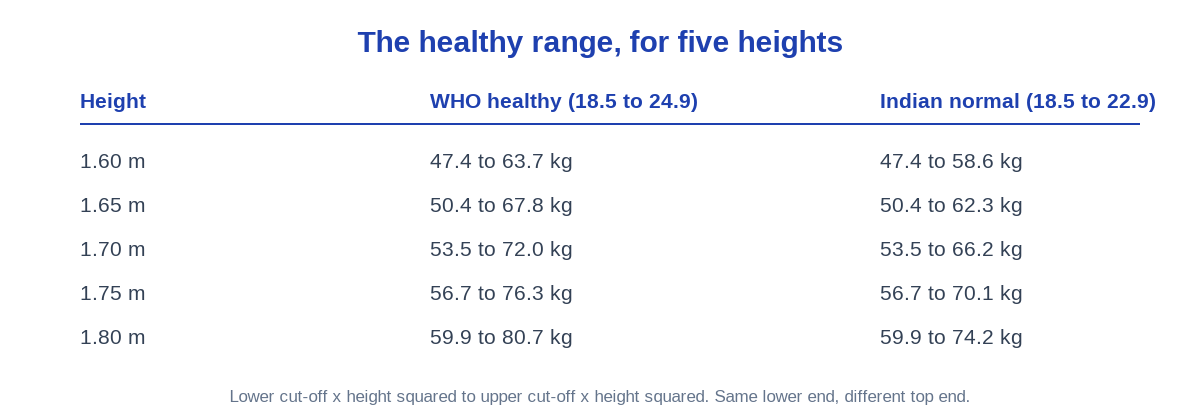
A range is more useful than a single target weight, because it tells the reader how far they are from a band rather than from one number. The range comes from the same formula run backwards: the lower cut-off times height squared gives the bottom of the range, and the upper cut-off times height squared gives the top. For 1.75 m that is 56.7 to 76.3 kg on the WHO scale and 56.7 to 70.1 kg on the Indian scale. The table below works it out for five common heights, so a reader can check their own height without doing the maths.
| Height | Healthy weight, WHO (18.5 to 24.9) | Normal weight, Indian (18.5 to 22.9) |
|---|---|---|
| 1.60 m | 47.4 to 63.7 kg | 47.4 to 58.6 kg |
| 1.65 m | 50.4 to 67.8 kg | 50.4 to 62.3 kg |
| 1.70 m | 53.5 to 72.0 kg | 53.5 to 66.2 kg |
| 1.75 m | 56.7 to 76.3 kg | 56.7 to 70.1 kg |
| 1.80 m | 59.9 to 80.7 kg | 59.9 to 74.2 kg |
One BMI point is worth about 3.1 kg at 1.75 m, because 1.75 squared is 3.0625. That turns an abstract gap into a concrete one. The worked example in the test table, 85 kg at 1.70 m, is 29.4 — overweight on both scales. To reach 24.9, the top of the WHO healthy band, that person would need to weigh 72.0 kg, which is about 13 kg less. The calculator should show the gap and stop there. It reports a number and a range; it does not set a target weight, a deadline or a pace for getting there. A target and a pace are conversations for a doctor, not lines under a calculator result. And keep the result to one decimal place: at the band edges, the decimal is the difference between two categories, not decoration.
Measure yourself properly: the inputs are only as good as the numbers
A calculator cannot fix a wrong input, and height and weight are both easy to get slightly wrong. Weigh yourself on the same scale each time, on a hard flat floor rather than carpet, which can throw a bathroom scale off. Do it in the morning, after using the bathroom, in light clothing and without shoes, with both feet centred on the scale. The brand of the scale matters less than using the same one: two different scales can disagree by a kilogram, and that kilogram is a third of a BMI point at 1.75 m.
Height needs the same care. Stand without shoes, with your heels and shoulders against a wall, and have someone place a flat book or ruler on top of your head and mark the wall, then measure from the floor to the mark. Do not guess your height from a driving licence or an old memory — most people overstate it by a centimetre or two, and the error is not harmless. A person who weighs 70 kg and is really 1.73 m tall has a BMI of 23.4, not 22.9. On the WHO scale both are normal, but on the Indian scale 23.4 is overweight and 22.9 is normal, so a two-centimetre error flips the category. Height also shrinks slightly through the day as the spine compresses, by about a centimetre, so measure the same way each time if you ever compare readings.
Then mind the units, because every unit slip in this guide is a real mistake people make. If your scale reads in stones, multiply by 14 to get pounds: one stone is 14 lb. If you are working in feet and inches, turn the height into total inches first — 5 feet 9 inches is 69 inches, not 5.9. In metric, 70 kg is 154.3 lb, and the height goes in as centimetres, 175, not as metres, 1.75, unless the field asks for metres. The app should do the conversions, but the person typing still has to know which box they are typing into, and the labels on the two fields are what decide that.
Finally, remember that one reading is a snapshot. Body weight moves from day to day with food, water and clothing, so a single number is not a trend. The calculator answers for the numbers typed into it and nothing more. If the same person types slightly different numbers next week, they will get a slightly different answer, and that is the inputs changing, not the tool breaking.
Why two scales exist: the story behind the Indian cut-offs
The two scales disagree for a measured reason, not a cultural one. The Indian Consensus Group's 2009 statement, by Misra and colleagues, set overweight at 23 to 24.9 and obesity at 25 and above for Asian Indian adults, because at the same BMI, South Asian adults carry more body fat and develop type 2 diabetes and heart disease earlier than European adults. A WHO expert consultation in 2004 reached the same conclusion and added public-health action points at 23.0 and 27.5 along the scale. An action point is not a new category edge: it is a BMI at which health services should start watching more closely. Note where the two action points sit — 23.0 inside the WHO normal band, 27.5 inside the WHO overweight band — which is the whole point. On the international table, nothing special happens at 23.0, but for an Indian adult, that is where the extra attention begins.
That history decides what the toggle should default to, and the answer depends on who will use the tool. If the audience is mainly in India — a gym in Srinagar, a clinic's website, a Hindi or Urdu audience — default to the Indian scale with the WHO scale one tap away. If the audience is international, default to WHO with the Indian scale one tap away. What you must never do is average the two scales into a third table nobody recognises, or relabel the Indian reading so it looks like a WHO reading. The Indian scale says obesity starts at 25; the WHO scale says it starts at 30. Both tables visible under the result, with their names on them, is what keeps the tool honest.
There is one more thing the calculator should not do with the difference. It should not present the Indian reading as a warning and the WHO reading as reassurance for the same person, because they are the same body and the same number seen against two reference tables. The result screen should give both readings side by side and let the reader see them, with the honest note next to them: BMI is a screening measure, not a diagnosis, and a result that worries someone is a reason to talk to a doctor, not a reason to panic or to celebrate.
Common mistakes in AI-built BMI calculators
Most AI-built calculators fail in the same handful of ways, and all of them are cheap to check for. Run down this list against your preview before you publish.
- The centimetre trap. The app divides by 175 squared instead of 1.75 squared and gives 0.0023 instead of 22.9. This is the single most common bug in home-made BMI tools, and the prompt in this guide states the conversion as its own line to stop it happening.
- Rounding to whole numbers. A result of 22.9 rounded to 23 looks tidier, but 23.0 is overweight on the Indian scale while 22.9 is normal. One decimal place is not cosmetic here — at the band edges, it is the category.
- Colour without words. A green or red band on its own fails for colour-blind readers and for anyone who prints the result in black and white. The category must always appear in plain words next to the colour, never as colour alone.
- Converting only half the units. Switching to imperial converts the weight to pounds but leaves the height in centimetres, or the other way round. Test the toggle with 70 kg and 175 cm and check it becomes 154.3 lb and 5 feet 9 inches.
- No guard for zero or negative inputs. A height of zero must give a plain message like “Enter your height first”, never Infinity, NaN or a crash. Division by zero is the oldest bug in calculators, and an AI-built app will happily divide by zero unless the prompt told it not to.
- A diet plan under the result. If the app adds “you should lose 5 kg” or a meal plan, that line came from the model, not from the formula. The prompt forbids medical advice for exactly this reason — remove the line, do not argue with it.
Every one of these is caught by the six test cases and the three edge cases earlier in this guide, which is why the testing section comes before the publishing section and not after it. Run them after every edit, not just once: an AI Studio change that fixes the colour can quietly break the formula, and the only way to know is to type 70 kg and 175 cm again and check that it still says 22.9.
After version one: history, printing and sharing
Once the calculator works, the most useful addition is a print button, and it is a one-line follow-up message to the app: add a button that prints only the result card, not the whole page. People take a paper result to a doctor's appointment far more often than they re-open a link, and a printed card with the number, the category on both scales and the honest note is exactly what a doctor needs to see. Ask for the printout to include the date and the inputs, so the paper still makes sense a month later.
A history of past results is the second idea people ask for, and it needs a careful answer. The prompt in this guide says no data is saved anywhere, so adding history changes that promise. If you add it, the results must be stored only in the visitor's own browser, never sent to a server, and the page must say so in plain words. If writing that sentence feels uncomfortable, skip history entirely. A calculator that quietly keeps people's weights is worse than a calculator with no history at all, and on the free tier — where Google says content may be used to improve its products — the safe default is to keep nothing.
Sharing is the third piece, and the copy and share buttons from the build are already the mechanism: a trainer sends a client's result to the client, and the client opens the tool. What changes after version one is maintenance, not features. Re-run the six test cases after every AI Studio change, keep the ZIP backup current, and check the Starter Tier count before publishing a second tool, because two apps is the limit and an unpublish is the only way back. A link that worked last month still deserves a fresh phone test before it is shared again — open it, type 70 kg and 175 cm, and check it says 22.9.
Pre-launch checklist
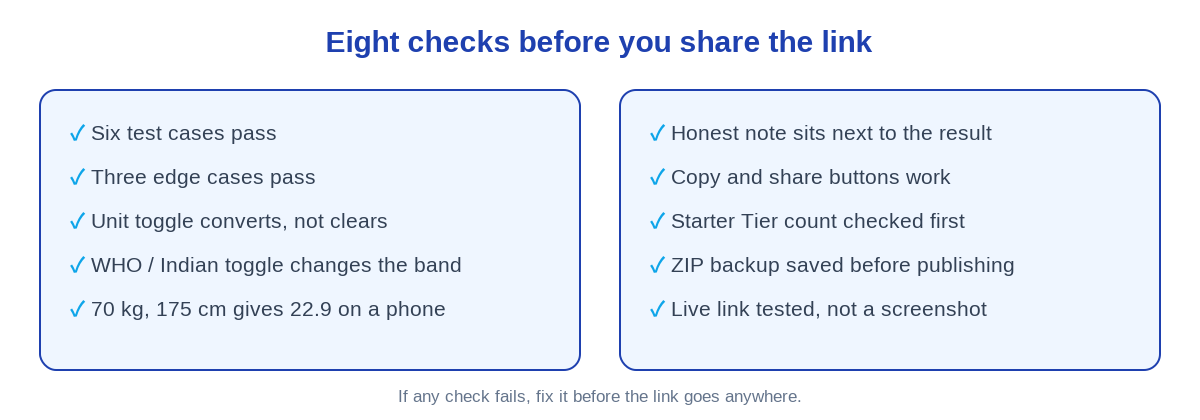
If every box below is ticked, the tool is ready to share. If any box is not, fix it first — a calculator people use is a calculator people trust, and trust is lost by one wrong number.
- All six test cases pass, with the answers from the test table.
- All three edge cases pass: zero height, the centimetre trap, and the extreme values.
- The unit toggle converts typed values instead of clearing them.
- The WHO / Indian toggle changes the category when it is switched.
- The honest note sits next to the result, not in a footer.
- The copy and share buttons work on a phone.
- The Starter Tier count is checked — no more than two apps live.
- The ZIP backup is saved, and the live link is tested on a phone with 70 kg and 175 cm, giving 22.9.
That is the whole build: a free tool, made from one prompt, checked against numbers you worked out by hand, and honest about what it is. It reports a screening number and a category on two scales, it keeps no data, and it tells the reader plainly where its limits are. Build it, test it, publish it — and then leave it alone until someone asks for a feature, because a small tool that works is worth more than a big one that almost does.
Next: How to Build a GST Calculator App with Google AI Studio Free (No Coding, 2027) →
Next: Invoice Reminders with Gemini Tasks: How to Set Up Free Payment Reminders →


