Here is the short answer first. You can build a working GST calculator app without writing a single line of code, without paying anything, and in about half an hour. You open Google AI Studio in your browser, go to its Build tab, pick the free model, and paste in a prompt that describes exactly what the calculator must do. AI Studio writes the app for you — the boxes, the buttons, the maths — and shows you a live preview you can tap and test right there. When the numbers come out right, you share it with a link. That is the whole job. No developer, no hosting bill, no app-store account.
The catch, and the reason this guide exists, is that a GST calculator is only as good as its maths. Google AI Studio will happily build you a beautiful calculator that charges the wrong tax, because it does not know that India changed its GST slabs in September 2025. Most of the example prompts floating around online still tell it to use the old 12% and 28% slabs, which no longer exist for almost everything. This guide gives you the exact prompt to paste — with the current GST 2.0 slabs, the right formulas, and the right test numbers — so the app you get is one you can actually hand to a customer. It also tells you where the free route ends: what sharing the app costs, what happens when the free limits run out, and when you should stop using AI Studio and use a ready-made calculator instead.
If you run a small shop, a freelance practice, or any business that sends GST invoices in India, this is a tool worth having. A GST calculator is the kind of thing you reach for ten times a day — working out the tax on a quote, checking a bill that came in with tax included, splitting the tax into CGST and SGST for an invoice. Building your own takes one afternoon, and you end up with an app that looks the way you want and does exactly what you need. This guide walks through every step, with the numbers checked by hand.
What Google AI Studio actually is
Google AI Studio is Google's free, browser-based workspace for trying its Gemini models and building small apps from a plain-English description. It lives at aistudio.google.com. You sign in with any Google account, and there is nothing to install, no credit card asked for, and no waiting period. The whole thing runs in your browser.
It has three main modes, and it helps to know which one you need. The Playground is a chat where you test prompts against a Gemini model, with every setting exposed — model, instructions, tools. Stream mode is for live voice and video conversations with the model. Build mode is the one this guide uses: you describe an app in plain English, and it generates a working web app — or an Android app — with a live preview next to the code it wrote. Under the hood, Google says the default web stack is a React front end with a Node.js server, but you never have to look at that code unless you want to.
Build mode lives on its own tab, at aistudio.google.com/apps. You type what you want, click Build, and a working preview appears. You can then keep talking to it in the chat panel — "make the buttons bigger", "add a copy button", "use rupees" — and it changes the app. When you are happy, you can share the app with a link, download the code, or deploy it. That is the whole workflow, and it is free to start: the Playground and Build mode are free with usage limits, and you only pay if you add API billing or a Google AI subscription.

One thing to get straight before you start: AI Studio is a workbench, not a finished assistant. The Gemini app on your phone is a finished assistant — you ask it things and it answers. AI Studio is the bench behind it, where you build things with the same models. That matters for this project because the app you build is yours: you describe it, you test it, you decide when it is right. Google does not check your GST maths for you. That job is yours, and the test table later in this guide is how you do it.
A second thing to know up front is the privacy term on the free tier. Google's pricing page says content on the free tier of the Gemini API and AI Studio can be used to improve its products, while paid-tier content is not used that way. For a GST calculator that is a small point — you are not pasting anything private into the prompt — but it is worth knowing, and it is one more reason to keep customer names, invoice numbers and real business figures out of the prompt and out of the test data. Test with round numbers like ₹1,000 and ₹2,500, not with a real customer's bill.
What your GST calculator has to get right
Before you write the prompt, you need to know what the calculator must do, because a vague prompt gets you a vague calculator. A GST calculator for India has four jobs, and if any one of them is wrong, the app is worse than useless — it is confidently wrong, which is the most dangerous kind of wrong when money is involved.
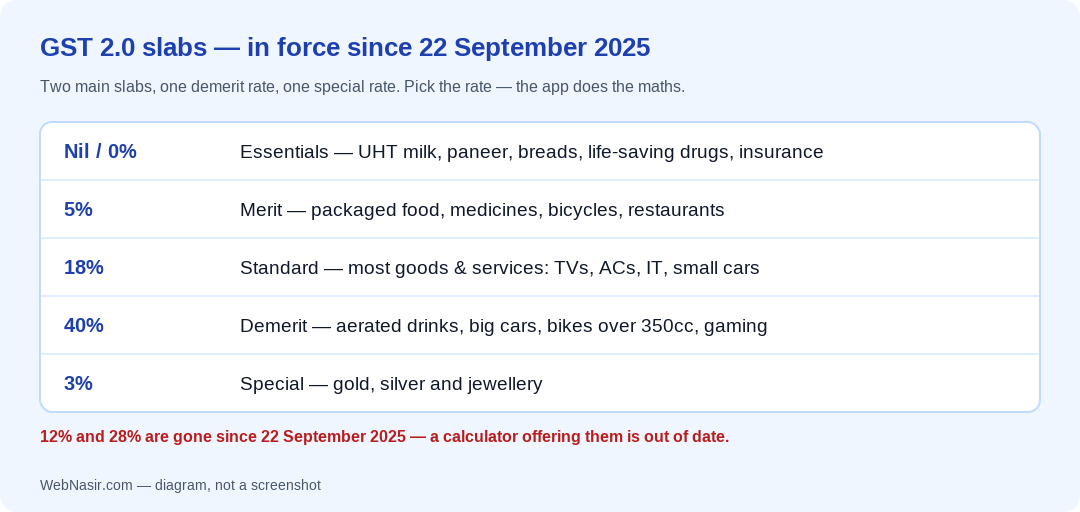
First, it must use the current GST slabs. Since 22 September 2025, India runs on GST 2.0: two main slabs, 5% (the merit rate) and 18% (the standard rate), plus a 40% demerit rate for a short list of luxury and sin goods, and a nil rate for essentials. The old 12% and 28% slabs were withdrawn for almost everything. This is the single most important fact in this guide, because almost every GST calculator prompt and tutorial written before September 2025 still lists 12% and 28%. If you paste one of those old prompts into AI Studio, you will get an app that offers rates your customers no longer pay, and every quote it produces will be wrong. The table below is the current structure, and it is the table your prompt must carry.
| Rate | What it covers (examples) | Who it matters to |
|---|---|---|
| Nil / 0% | UHT milk, paneer, Indian breads, 33 life-saving drugs, individual life and health insurance, school education, healthcare | Everyone — essentials are tax-free |
| 5% | Packaged food, medicines, bicycles, clothes and shoes up to ₹2,500, restaurants, hotel rooms up to ₹7,500 a night, economy flights | Small shops, food businesses, hotels |
| 18% | Most goods and services — TVs, air conditioners, cement, small cars, bikes up to 350cc, IT and professional services, telecom, banking | Almost every business — this is the default rate |
| 40% | Aerated drinks, big cars, bikes above 350cc, yachts, private aircraft, online money gaming | Luxury and sin goods only |
| 3% (special) | Gold, silver and jewellery | Jewellers |
A note on what the table does not do: it cannot tell you the rate for your exact item. A rate is decided by the item's HSN code (for goods) or SAC code (for services), plus conditions — packaged versus loose, price thresholds, whether input tax credit is taken. A restaurant is 5% without credit and something else with it; a hotel room is 5% up to ₹7,500 a night and 18% above it. So the calculator's job is not to guess the rate. Its job is to let the user pick the rate from the current list and do the maths perfectly. That is what the prompt below tells it to do, and it is why the rate is a dropdown, not a text box.
The rate change itself is worth understanding, because your customers will ask about it. The 56th GST Council approved the change on 3 September 2025, and the new rates took effect on 22 September 2025, the first day of Navratri. The 12% slab is gone — almost everything in it moved to 5%. The 28% slab is gone for the goods this guide covers — most of it moved to 18%, and a small remainder moved to the new 40% demerit rate. A 28% rate survives for a small set of specified goods outside this guide, and tobacco and pan masala stayed on the old treatment until 1 February 2026, when they moved to 40% plus excise. The legal basis is CBIC Notification No. 9/2025-Central Tax (Rate) for goods and No. 10/2025 for services, both dated 17 September 2025. You do not need to memorise any of that, but if a customer says "my old calculator says 12%", you now know why it is wrong and when it changed.
Second, the calculator must handle both directions: adding GST to a price and removing GST from a price that already includes it. These are different calculations, and confusing them is the most common mistake in GST maths. A shopkeeper quoting a price usually adds GST: the price is ₹1,000, the rate is 18%, the tax is ₹180, the customer pays ₹1,180. A customer checking a bill usually removes GST: the bill says ₹1,180 including tax, the rate is 18%, so the base price was ₹1,000 and the tax inside it was ₹180. Same numbers, opposite directions, and a calculator that only does one of them is only half a tool.
Third, it must split the tax correctly. When buyer and seller are in the same state, the tax is split in half: CGST plus SGST. At 18% on ₹1,000, that is ₹90 CGST and ₹90 SGST, which adds up to the same ₹180. When they are in different states, the whole tax is IGST: ₹180 IGST, no split. An invoice needs the split written on it, so the calculator must show it, not just the total tax.
Fourth, it must round properly and format money the Indian way. Money is rounded to two decimals, and a calculator that shows ₹180.00000000000003 has a bug, not a feature. And Indian digit grouping is different from the Western kind: ₹1,00,000, not ₹100,000. A calculator that formats lakhs the Western way looks wrong to every Indian who reads it, and it makes large figures hard to read at a glance. The prompt below asks for both.
One more thing the calculator must do, and it is easy to forget: it must work on a phone. Most of the people who will use your app — you at a customer's shop, your accountant on the go, a client checking a quote — will open it on a phone. Big boxes, big buttons, nothing that needs pinching and zooming. The prompt asks for that too.
The three formulas (check these by hand)
The whole calculator is three formulas. Read them once, check them against the examples, and you will be able to test any GST app — this one, or anyone else's — in under a minute.
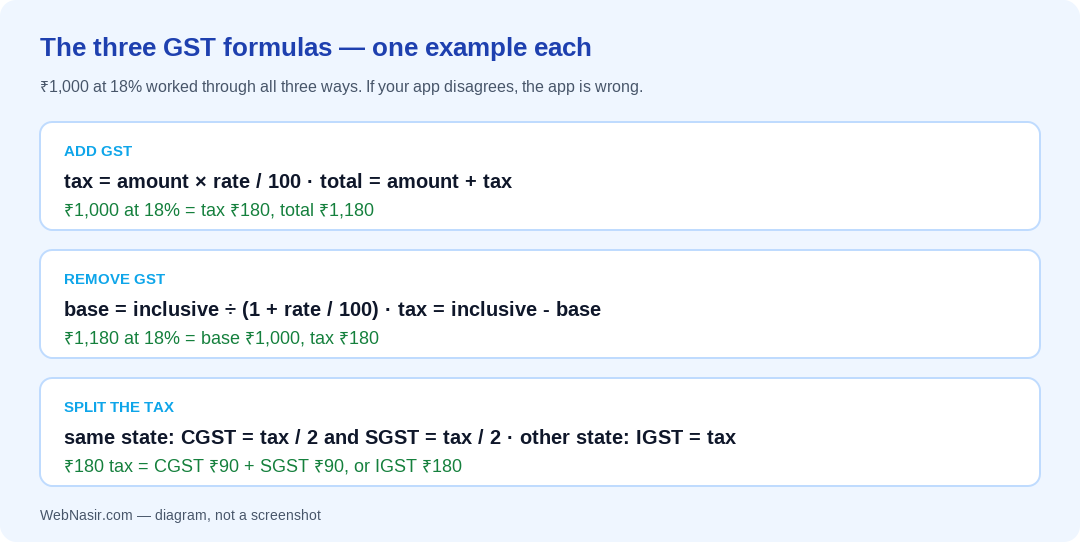
Adding GST is the easy one. Tax equals the amount times the rate divided by 100, and the total is the amount plus the tax. On ₹1,000 at 18%, the tax is 1,000 × 18 / 100 = ₹180, and the total is ₹1,180. On ₹1,000 at 5%, the tax is ₹50 and the total is ₹1,050. On ₹25,000 at 18%, the tax is ₹4,500 and the total is ₹29,500.
Removing GST is the one people get wrong, because the temptation is to subtract 18% of the inclusive price — which gives the wrong answer. The right formula is: base amount equals the inclusive amount divided by (1 + rate / 100), and the tax is the inclusive amount minus the base. On ₹1,180 including 18% GST, the base is 1,180 / 1.18 = ₹1,000, and the tax is 1,180 − 1,000 = ₹180. On ₹590 including 18%, the base is 590 / 1.18 = ₹500 and the tax is ₹90. On ₹1,062 including 18%, the base is 1,062 / 1.18 = ₹900 and the tax is ₹162. If you subtract 18% of ₹1,180 instead — ₹212.40 — you get ₹967.60 as the base, which is wrong by ₹32.40. That is the mistake to watch for when you test the app.
Splitting the tax is simple once the tax is known. Same state: CGST is half the tax and SGST is the other half. At 18% on ₹1,000, the tax is ₹180, so CGST is ₹90 and SGST is ₹90. Other state: the whole tax is IGST, so IGST is ₹180 and there is no split. At 5% on ₹2,500 the tax is ₹125 — same state means CGST ₹62.50 and SGST ₹62.50, other state means IGST ₹125.
Here are all three formulas in one place, with the ₹1,000 at 18% example worked through, because this is the diagram you will want open while you test the app.
The one number that trips up almost everyone is the 40% slab, because it looks like a lot — and it is. On a ₹1,00,000 item at 40%, the tax is ₹40,000 and the total is ₹1,40,000. That is correct, and it is why the slab exists: it is meant to hurt. If your calculator shows a smaller number for a 40% item, it is using the wrong slab. And the zero rate is the opposite trap: at 0%, the tax is ₹0 and the total is the amount itself. A calculator that refuses to calculate at 0%, or shows an error, has a bug — zero is a real rate, and it is the rate for essentials.
Step 1: open AI Studio and get to Build mode
Open your browser and go to aistudio.google.com. Sign in with any Google account — the same one you use for Gmail works. There is nothing to download and nothing to install; the whole tool runs in the browser, on a phone or a computer, though a computer is easier for building because you can see the preview and the code side by side.
Once you are in, look at the left sidebar. You will see sections for Home, Playground, Build, Dashboard and Documentation. Click Build. That takes you to the Build tab, at aistudio.google.com/apps, which is where apps are made. The first time you open it you may see a few example apps or templates — ready-made starting points for common ideas. Ignore them for this project; a GST calculator is simple enough to describe from scratch, and starting from a template built for something else only adds things you will have to remove.
If AI Studio asks you to accept terms, accept them — that is the one-time setup. New users get a default project created automatically once they accept. You do not need an API key for this project, and you do not need to add any billing. Both of those come later, and only if you decide to go further than this guide.
Step 2: pick the free model
In Build mode, open Settings and look at the model choice. This is the one setting that decides whether the build costs you anything. The free tier covers the free models — the Hydrogen and Flash family. As of late November 2026, the free model to pick is Gemini 4 Hydrogen, which Google lists as free on its pricing page. The paid models — Neon and Argon need a Google AI Pro or Ultra subscription, and Carbon needs Ultra — are the ones to avoid for this project. A GST calculator does not need the most powerful model; it needs a model that can write a small web page correctly, and the free one does that easily.
Two honest warnings here. First, model names and free-tier limits change — Google renames models and moves them between tiers more often than anyone would like. So do not trust a model name from any guide, including this one, more than you trust the screen in front of you. The durable rule is: in Build mode's Settings, pick the model that is marked free. If Hydrogen is not there when you read this, pick whichever model the screen marks as free. Second, free use has limits. Google moved the free tier to compute-based usage caps that refresh through the day — every five hours, as of its I/O 2026 change — where lighter work uses less of your allowance than heavy work. Building one small calculator is light work. If you hit a limit mid-build, wait a bit and continue; you do not need to pay.
There is also an effort setting in Build mode, and it is worth knowing about. Plan mode is for brainstorming an idea before building. Default starts the build straight away. Max mode puts the most effort into the build. For a calculator, Default is right — it is a small, well-defined app, and Max would spend your free allowance on polish you do not need yet. If the first build comes out wrong in some way, you fix it by talking to it, not by rebuilding from scratch in Max mode.
Step 3: paste this prompt
This is the heart of the guide. The box below is the prompt to paste into Build mode, word for word. It is written the way AI Studio builds best: it says what the app is, what fields it has, the exact maths, how the money should look, and what not to do. Copy it, paste it into the Build box, and click Build. The build usually takes under a minute.
Build a GST calculator web app for Indian small businesses. One page, clean and simple, works on a phone.

Fields: an amount box (numbers only), a GST rate dropdown with 0%, 5%, 18% and 40%, a choice between "Add GST" and "Remove GST", and a choice between "Same state (CGST + SGST)" and "Other state (IGST)". A big Calculate button and a Clear button.

Maths, exactly: Add GST: tax = amount x rate / 100; total = amount + tax. Remove GST: base = inclusive amount / (1 + rate / 100); tax = inclusive amount - base. Same state: split the tax in half, CGST = tax / 2 and SGST = tax / 2. Other state: the whole tax is IGST. Round every rupee figure to 2 decimals.

Show the result in a big box: base amount, GST amount, total amount, and the CGST/SGST or IGST split. Format all money in Indian rupees with the ₹ symbol and Indian digit grouping (1,00,000 not 100,000). Add a Copy result button that copies the result as text. Use a white page, deep blue headings, and large buttons that are easy to tap on a phone. No login, no sign-up, no data saved anywhere.
Read the prompt once before you paste it, because there are three decisions inside it worth understanding. The first is the rate dropdown: 0%, 5%, 18% and 40%. Those are the current GST 2.0 slabs, and nothing else. There is no 12% and no 28% in that list, deliberately — a calculator that offers them is out of date, and this prompt makes sure yours is not. The second is the two choices — add or remove, same state or other state — because those four combinations are the whole calculator. The third is the last line: no login, no sign-up, no data saved anywhere. That keeps the app simple, keeps it free, and keeps your customers' figures off any server.
A note on the prompt's length. It looks long, but every line earns its place. A short prompt like "build me a GST calculator" gets you a calculator with whatever rates the model remembers — which, given how much of the internet was written before September 2025, will very likely include 12% and 28%. The specific prompt is what makes the specific app. If you ever build another calculator — a TDS calculator, an EMI calculator — the lesson is the same: put the maths in the prompt, in plain words, with the numbers.
Step 4: test it with these five numbers
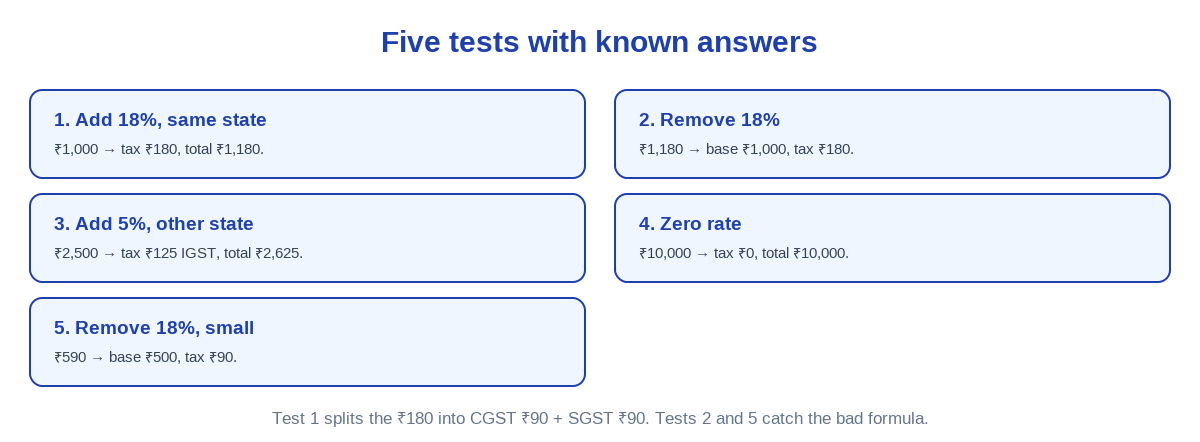
As soon as the preview appears, test it. Do not admire it first, do not share it first, do not add features first. Test it, because an app that looks right and calculates wrong is worse than no app at all. The preview works right there in AI Studio — type in the numbers, tap Calculate, and read the answers. Here are five tests. Every one of them has a known answer, worked out by hand, so there is no guessing about whether the app is right.
| Test | What to type in | The app must show |
|---|---|---|
| 1. Add 18%, same state | ₹1,000, 18%, Add GST, same state | Tax ₹180 (CGST ₹90 + SGST ₹90), total ₹1,180 |
| 2. Remove 18% | ₹1,180, 18%, Remove GST | Base ₹1,000, tax ₹180 |
| 3. Add 5%, other state | ₹2,500, 5%, Add GST, other state | Tax ₹125 (IGST ₹125), total ₹2,625 |
| 4. Zero rate | ₹10,000, 0%, Add GST | Tax ₹0, total ₹10,000 |
| 5. Remove 18%, small amount | ₹590, 18%, Remove GST | Base ₹500, tax ₹90 |
Run all five. If all five pass, your app's maths is right, and you can move on to making it look the way you want. If any one fails, do not share the app — fix it first, using the next section. Test 2 and test 5 are the important ones, because removing GST is where the model most often writes the wrong formula. If the app subtracts 18% of the inclusive price instead of dividing, test 2 will show a base of ₹967.60 instead of ₹1,000, and you will have caught it before any customer did.
Test with your own numbers too, once the five pass. Try the figures from a real quote — ₹499 at 18% should give tax ₹89.82 and a total of ₹588.82; ₹25,000 at 18% should give tax ₹4,500 and a total of ₹29,500; ₹1,00,000 at 40% should give tax ₹40,000 and a total of ₹1,40,000. If those come out right as well, the app is solid. And try the edges: type 0 as the amount, type a very large number, leave the amount empty and tap Calculate. A good app handles all of that gracefully instead of showing a broken page.
Step 5: fix the three mistakes it will probably make

If a test fails, do not rebuild the app from scratch. Talk to it. The chat panel next to the preview is how you fix things: you describe the problem in plain words, and it changes the code. Here are the three mistakes that come up most often, and the exact words to fix each one.
The first mistake is the old slabs. The app shows 12% or 28% in the rate dropdown, or the results mention them. This happens because the model learned from the whole internet, and most of the internet's GST content predates September 2025. The fix is one sentence in the chat panel: "Remove the 12% and 28% rates from the dropdown. The only rates are 0%, 5%, 18% and 40%." Then re-run test 1 to make sure nothing else changed.
The second mistake is the remove-GST formula. The app subtracts the rate from the inclusive price instead of dividing by (1 + rate / 100). You will see it in test 2: the base comes out as ₹967.60 instead of ₹1,000. The fix, again in plain words: "For Remove GST, the base is the inclusive amount divided by (1 + rate / 100), and the tax is the inclusive amount minus the base. For ₹1,180 at 18%, the base must be ₹1,000 and the tax ₹180." Giving it the worked example is the key — the model corrects itself far more reliably when it can see the exact numbers it should produce.
The third mistake is rounding and formatting. The app shows tax as ₹180.00000000000003, or formats ₹1,00,000 as ₹100,000. The first is a floating-point artefact — computers store decimals imperfectly, and the fix is to round every displayed figure to two decimals. The second is Western digit grouping, which the model defaults to. The fix for both is one message: "Round every money figure to exactly 2 decimals, and format rupees with Indian digit grouping, so 100000 displays as ₹1,00,000." Then test with ₹1,00,000 at 40% and check that the total reads ₹1,40,000.
One more fix that comes up less often but is worth knowing: the split. The app shows CGST and SGST for an inter-state calculation, or shows IGST for an intra-state one. The rule is simple and the fix is one sentence: "Same state means CGST plus SGST, each half the tax. Other state means the whole tax is IGST, with no split." If the split is still wrong after that, ask it to show the split only when the same-state option is selected.
A general rule for fixing: one problem per message. If you list four fixes in one message, the model often fixes two and forgets the other two, and you cannot tell which ones it did. One message, one fix, one test. It is slower in the moment and much faster overall.
Step 6: add the Indian touches

Once the maths is right, make the app feel like it belongs to an Indian business. These are the touches that turn a generic calculator into a tool you actually want to open every day, and they are all things you can ask for in the chat panel, one at a time.
The first is the ₹ symbol everywhere, with Indian digit grouping. You asked for this in the original prompt, but check it survived: open the app, type 100000, and confirm it shows ₹1,00,000. If it shows ₹100,000, ask for Indian grouping, as in the previous section.
The second is a slab dropdown that helps instead of just listing numbers. Ask the app to show a short hint next to each rate — "5% — food, medicines, small hotels", "18% — most goods and services", "40% — luxury and sin goods", "0% — essentials". That hint is what stops you picking the wrong rate in a hurry, and it is the kind of thing a generic calculator never has.
The third is a Copy result button. When you work out the tax on a quote, you want to paste the answer into WhatsApp or an invoice, not retype it and risk a typo. Ask the app to add a button that copies a line like "Amount ₹1,000 + GST 18% (CGST ₹90 + SGST ₹90) = Total ₹1,180" to the clipboard. Test it by pasting into a message to yourself. If the copied text is missing the split, say so: "Include the CGST and SGST split in the copied text."
The fourth is a small history — the last three or four calculations, kept on the page until you clear them. This is genuinely useful when you are working through a list of items on one invoice, and it is a simple thing for the app to do, since it is just remembering numbers on the page. Ask for it only after the basics are right, because it is a nice-to-have, and nice-to-haves added too early are how a clean app becomes a cluttered one.
The fifth is the look. White page, deep blue headings, large buttons — you asked for this in the prompt. If the app came out in some other colour, say so plainly: "Use a white background, deep blue headings, and large buttons." Do not ask for a redesign, and do not ask for animations or decorative effects. A calculator is a tool, and a tool should be readable at a glance in bright sunlight on a phone screen.
Step 7: share it — the app link, and the honest limits
When the five tests pass and the app looks right, it is time to share it. AI Studio gives you a share link for the app — an ai.studio/apps address — and anyone with the link can open and use it. Apps are private by default, so nothing is public until you share the link. Send it to yourself first, open it on your phone, and run test 1 on the phone. If it works there, it works everywhere, and you can send it to your staff, your accountant, or your customers.
That link is the free way to share, and for most people it is enough. But it is worth knowing exactly what you are sharing. The app runs on Google's infrastructure, not on your own website or domain. The link says ai.studio, not your business name. You cannot put it on your own domain without extra work, and you cannot change that address. For a tool you use yourself and share with a few people, that is fine. For a tool you want customers to find on Google, it is not — a page on ai.studio will not rank for your business, and it does not carry your branding.
There are two ways past that, and both are free, but neither is one click. The first is to download the app's code from AI Studio and host it yourself. AI Studio lets you export the project — clean, standard code, HTML, CSS and JavaScript — and you can put it on free hosting such as GitHub Pages or Netlify, which costs nothing for a small static site. That gives you a page on your own address, and it is the route to take if you want the calculator on your business website. The second is to deploy it to Google Cloud Run from AI Studio, which gives you a public link in a few clicks — but that route needs a Google Cloud project with a valid billing account, so it is not free in the same way. Cloud Run itself gives two million requests free a month, but the billing account has to exist first, and that is a step too far for most people building their first calculator. The honest advice is: use the share link now, and move to free static hosting when you want the calculator on your own site.
One more honest limit: the app has no memory beyond the page. It does not save calculations to a database, it does not keep a record of your invoices, and it cannot email anyone a result. That is by design — the prompt said no data saved anywhere — and it is a strength for a calculator, because it means there is nothing to leak and nothing to maintain. But if you later want a version that saves invoice history or works offline, that is a different app, and it is the point at which hiring a developer starts to make sense.
And the Android question, since someone always asks: yes, Build mode can make an Android app too, and you can install it on your own phone by connecting the phone with a USB cable and choosing Install in AI Studio. Publishing it on Google Play is a different matter — that needs a Google Play developer account, which costs $25 as a one-time fee, and a listing, screenshots and a privacy policy. For a calculator you use yourself, the web link is enough. Do not pay $25 to put a calculator on the Play Store.
Cross-check it against a real GST calculator
Here is a check that costs thirty seconds and catches mistakes no amount of staring at your own app will catch: run the same numbers through a second calculator and compare. If both agree, you can trust the answer. If they disagree, one of them is wrong, and you now know which test to run to find out.
WebNasir's own GST Calculator tool does exactly this job — add or remove GST, CGST and SGST versus IGST, on the current GST 2.0 slabs — and it is the natural cross-check for the app you just built, because it was built on the same rates this guide uses. Open it, type in ₹1,000 at 18%, and compare with your app's answer. Then try ₹1,180 removing 18%, and ₹2,500 adding 5% for another state. If all three match, your app is right and you are done. If they do not match, the test table in step 4 tells you which one is wrong — and it is almost always the app you just built, because a ready-made calculator has already been through this same testing.
This is also the practical answer to a question you might be asking: why build an app at all, when a ready-made GST calculator already exists? Two reasons. The first is that building it teaches you the maths — after an afternoon with the formulas and the test table, you will never again wonder whether a bill's GST is right, because you will know how to check it in your head. The second is that your app does what you want it to do: your colours, your buttons, your history, your copy format. A ready-made tool is a good cross-check and a good daily driver. Your own app is the one that fits your hand. Use both.
When the free route stops being enough
The free route in this guide covers almost everyone who needs a GST calculator. But it has edges, and it is better to know them now than to discover them in the middle of a busy day.
The first edge is the usage limit. Free use in AI Studio is capped, and the caps refresh through the day — every five hours, as of Google's I/O 2026 change to compute-based limits. Building one calculator is light work and will not trouble the limit. Rebuilding it ten times in an afternoon because you keep changing your mind might. If AI Studio tells you that you have hit a limit, stop, wait a few hours, and continue. Do not pay to get past a limit on a one-afternoon project.
The second edge is that the app is a calculator, not a billing system. It does not store invoices, it does not file returns, and it does not know your GSTIN. If your business grows to the point where you are raising dozens of invoices a day, you need accounting software — Tally, Zoho Books, or any of the GST billing apps — not a calculator, however good the calculator is. The calculator is for quick checks and quotes. The accounting software is for the books.
The third edge is the rates themselves. GST rates change — this guide exists because they changed in September 2025 — and a calculator built today will be wrong the day the Council changes a rate again. When that happens, you do not rebuild the app. You open it in AI Studio, tell it the new rate in one message, test it against the new numbers, and share the link again. That is a five-minute job, and it is the real advantage of building the app yourself instead of downloading one: you can fix it yourself, the same day, without waiting for a developer.
If you ever do decide to pay for something, pay for the right thing. A Google AI Pro subscription buys you higher limits and the paid models, which a calculator does not need. A Cloud Run billing account buys you a public deployment, which a share link already gives you for free. The thing worth paying for, if anything, is a proper invoicing tool when your volume justifies it — and that is a business decision, not an AI Studio decision.
Frequently asked questions
Is Google AI Studio really free?
Yes, to start. You sign in with a Google account at aistudio.google.com, and the Playground and Build mode are free with usage limits. No credit card is asked for, and nothing is installed. You only pay if you add API billing or a Google AI subscription, and neither is needed to build and share a GST calculator.
Do I need to know coding to build the app?
No. You describe the app in plain English, and AI Studio writes the code. You will see the code next to the preview, but you never have to read it or change it. Everything in this guide — building, testing, fixing, sharing — is done by typing sentences into a chat box.
Which model should I pick in Build mode?
Pick the model marked free in the Settings panel. As of late November 2026 that is Gemini 4 Hydrogen, the free model on Google's pricing page. The paid models — Neon and Argon need a Pro or Ultra subscription, Carbon needs Ultra — are for heavier work, and a calculator does not need them. If the free model has a different name when you read this, trust the screen, not the name.
Will the app work on my phone?
Yes. The app is a web page, so it opens in any phone browser from the share link, and the prompt asks for large buttons and a layout that works on a small screen. Test it on your own phone before you share it — open the link, run the ₹1,000 at 18% test, and check that the buttons are easy to tap.
Can I put the calculator on my own website?
Not directly from the share link — that link lives on ai.studio, not your domain. To put it on your own site, download the app's code from AI Studio and host it on free static hosting such as GitHub Pages or Netlify, which costs nothing for a small page like this. Deploying to Google Cloud Run from AI Studio is also possible, but it needs a Google Cloud project with a billing account.
Does the app save my calculations or my customers' data?
No. The prompt tells it to save nothing, and a plain calculator app has nowhere to save anything to — there is no database and no login. That is a strength: there is nothing to leak. But it also means the app cannot keep an invoice history, so use accounting software for your books and the calculator for quick checks.
What if GST rates change again?
Open the app in AI Studio, tell it the new rate in one message — for example, "Change the 18% rate to 20%" — test it against the new numbers, and share the link again. It is a five-minute job. This is the advantage of building the app yourself: you can fix it the same day a rate changes, instead of waiting for someone else to update a tool.
Is this tax advice?
No. This guide shows you how to build a calculator that does the arithmetic, and the arithmetic is checked against the GST 2.0 slabs in force since 22 September 2025. But the rate for your exact item depends on its HSN or SAC code and its conditions, and only the CBIC rate finder or your chartered accountant can confirm that. If a calculation decides a real invoice, verify the rate first.
Who this is for, and what to do next
This guide is for the Indian small business owner who does their own quotes and checks their own bills — the shopkeeper, the freelancer, the tutor, the clinic, the coaching centre. It is also for the beginner who has never built an app and wants a first project that is genuinely useful, not a toy. A GST calculator is the right first app because it is small, because the maths can be checked by hand, and because you will use it every day after you build it.
What to do next is simple. Open aistudio.google.com, go to Build, pick the free model, paste the prompt from step 3, and run the five tests from step 4. If they all pass, share the link with yourself and use the app on your next quote. If one fails, fix it with the words in step 5 — one fix, one test — and try again. The whole job takes an afternoon, and at the end of it you own a tool that does exactly what you need, with maths you have verified yourself.
And when the next tax changes, or the next app idea comes, you will already know the workflow: describe it plainly, put the numbers in the prompt, test it against answers you worked out by hand, and share it. The GST calculator is the first app. The wedding invitation website, the TDS calculator, the booking form — they are the same workflow with different words, and they are all one prompt away.
Next: How to Add UPI Payment to a Google Sites Website in India →