Beginners · Hosting Basics
What Is Web Hosting and How Does It Work? Explained in Plain English
By Nasir · WebNasir.com · Updated 26 Nov 2026
When a client asks me “but what is web hosting, actually?”, I never start with servers. I start with a house. By the end of this page you'll understand hosting the way my clients do — well enough to buy it without getting upsold, which is the only level of understanding most people ever need.
The house explanation (the only one you'll need)
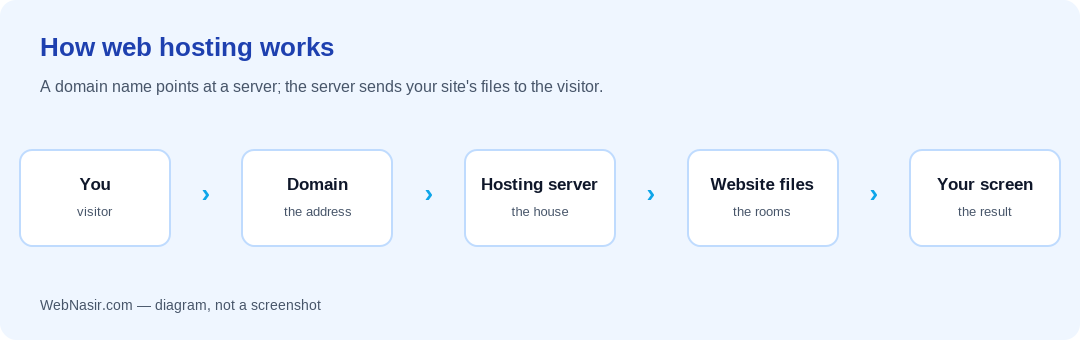
- Your website is a house — pages, photos, text, everything.
- Web hosting is the plot of land the house sits on. No land, nowhere to build — your website files have to physically live somewhere.
- The domain name is the street address — webnasir.com, google.com. It doesn't hold anything; it just tells visitors where to go.
- The server is the land + the building crew combined — a powerful computer, kept in a data centre, switched on 24/7, whose whole job is to hand your house's rooms (pages) to anyone who knocks.
So “hosting” is simply renting space on one of those always-on computers . You pay a hosting company; they keep the machine running, powered, cooled and connected; your website lives there.
What actually happens when someone opens your website
- A visitor types your address (domain) into their phone.
- The internet looks up which server that address points to — like a phonebook for websites (this lookup system is called DNS).
- Their browser asks your server: “show me the homepage.”
- The server sends back the page's files — text, images, code.
- The browser assembles them on screen. All of this in about a second, when the hosting is decent.
That's it. Every website you've ever opened did exactly this. Slow website? Usually a slow or overcrowded server answering late — which is why hosting quality is felt, even if it's never seen.
The main types of hosting, in one honest table
| Type | Think of it as | Good for |
|---|---|---|
| Shared hosting | A room in a big apartment building — cheap, neighbours included | First websites, blogs, small business sites. Where 90% of people should start. |
| Cloud hosting | A flat that can borrow extra rooms when guests arrive | Growing sites with traffic spikes. |
| VPS | Your own floor of the building — your resources, your rules, your repairs | Custom software and busy sites, once you (or your developer) can manage a server. |
| Managed WordPress | A serviced apartment — pricier, everything handled | Businesses who'd rather pay than maintain. |
I run my own projects across this range — small sites on ordinary hosting, and heavier systems on my own servers. The expensive option was never the right first step for any of them.
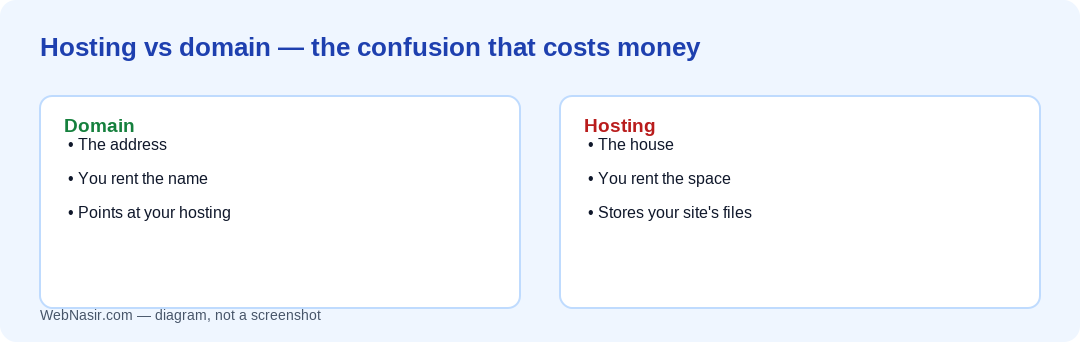
Hosting vs domain — the confusion that costs people money
They're sold together, so people think they're one thing. They're not. Domain = address (rented yearly). Hosting = land (rented monthly/yearly). You can buy them from different companies, and sometimes should — but for a first website, buying both in one place keeps life simple. What matters is knowing the renewal price of each , because both renew, forever, for as long as you want the site alive.
And what's SSL, the padlock thing?
SSL is the lock on your house's front door — it encrypts what visitors send you (names, passwords, card details) so nobody in between can read it. It's why addresses start with https and show a padlock. Most decent hosts include it free (called Let's Encrypt). No padlock = browsers warn visitors away = don't launch without it.
How to choose, if you're buying this week
- Start with shared hosting unless you have a specific reason not to.
- Pick a server location near your visitors — Mumbai or Singapore for India, US/UK locations for those audiences.
- Judge by the renewal price , not the first-term offer.
- Make sure backups and free SSL are included — walk away if they're paid extras.
Next: Cheapest hosting in India, compared in ₹ →
Black Friday deals (end 30 Nov) →
What You're Actually Paying For Every Month
Most people think the hosting fee buys them "a website." It doesn't. It buys four separate things bundled together, and once you can see them separately, you can tell whether a host is worth its price or just good at marketing.
1. A place to keep your files
Your pages, images, product photos, the theme files, the little icons — all of it sits on a disk somewhere in a data centre. That disk is the simplest part of hosting. It's cheap. It's also the part every host has, so it's never the reason to pick one over another.
2. A computer that answers visitors
A hard drive sitting alone does nothing. You need a machine that's awake, connected, and ready to respond the moment someone types your address. This is the server. When a coaching centre in Pune gets fifty parents checking fees at 9pm, that machine is doing the work.
3. A connection fast enough to not embarrass you
A home baker uploading a cake gallery doesn't need much. But if your site takes eight seconds to load on a phone, people leave before they see the first photo. Bandwidth and server speed decide whether your site feels instant or feels broken.
4. Someone to call when it breaks
This is the part nobody values until 11pm on a Saturday when your repair shop's booking page is down. Support is not a feature. It's half the product. A cheap host with no real support is not cheap — it's expensive in lost customers.
Shared, VPS, Dedicated, Cloud — What the Words Really Mean
You'll see these four words on every hosting site. Here's the honest version, using a building analogy, because it's the one that sticks.
| Type | Plain-English reality | Who it suits |
|---|---|---|
| Shared | You rent one flat in a building. Neighbours share the water and electricity. Cheap, fine, but a noisy neighbour can slow you down. | Kirana store site, portfolio, small blog |
| VPS | You rent a whole floor. Still in a shared building, but your own space and resources. | Growing coaching centre, small online store |
| Dedicated | You rent the entire building. Nobody else touches your resources. | High-traffic store, custom software |
| Cloud | You rent rooms across many buildings. If one building has a problem, another picks up. | Sites that must stay up during traffic spikes |
Notice I didn't say one is "best." A home baker selling birthday cakes on weekends does not need a dedicated server. A repair shop with a booking form does not need cloud. Most small businesses in India start on shared and never need to move — and that's completely fine.
The trap in "unlimited"
Many shared plans advertise unlimited storage or unlimited bandwidth. Read the fine print on the pricing page, because "unlimited" almost always has a fair-use clause. It means unlimited for normal use, not unlimited for hosting a thousand videos. If your plan sounds too generous, it probably has a limit hiding in the terms.
The Real Costs Nobody Warns You About
The monthly fee is the smallest number on your hosting bill. The bigger costs are the ones that show up later. Here's what to watch, without me quoting a single rupee figure — because prices change and I'd rather you check the live page than trust a number I wrote months ago.
The renewal jump
Almost every host offers a low first-term price and a higher renewal price. That's not a scam, it's just how the industry works. The mistake is signing up for three years at the intro rate without checking what year four costs. Always look at the renewal price before you commit.
The migration fee
Moving an existing site to a new host can be free or paid, depending on the host and how complex your site is. A simple WordPress site is usually a quick job. A store with hundreds of products and custom code is not. Ask before you buy, not after.
The add-on creep
Backups, SSL, email, extra domains — some hosts bundle these, some charge separately. A plan that looks cheap can end up costing more once you add the basics you actually need. Compare the total, not the headline.
How to Move Your Site Without Breaking It
Switching hosts sounds scary. It isn't, if you do it in the right order. I've moved sites for clients and for myself, and the process is always the same. Here's the sequence that avoids downtime and lost emails.
- Take a full backup of your current site — files and database. Keep it somewhere you control, not just on the old host.
- Buy the new hosting plan and set it up. Don't cancel the old one yet.
- Move your files and database to the new host. Many hosts do this for you if you ask.
- Test the site on the new host using a temporary address before touching your domain.
- Once it looks right, update your domain's nameservers to point to the new host.
- Wait for the change to spread across the internet. This can take a few hours, sometimes a day.
- Only after everything works, cancel the old plan.
The one step people skip is number four. They point the domain first and then discover the site is broken, and now their customers see the mess. Test first. Always.
Don't forget your email
If your business email ends with your domain — like hello@yourbakery.in — that email is often tied to your hosting. Move it carefully or you'll lose incoming messages. Check with your host whether email is included, and if it is, make sure it's set up on the new side before you switch.
Speed, Uptime, and Backups — The Three Things That Actually Matter
Forget the feature list. For a small business, three things decide whether hosting is good or bad. Everything else is decoration.
Speed
A slow site loses customers silently. They don't complain, they just leave. You can't fix speed by shouting at your host — you fix it by choosing a host with servers close to your customers, keeping your site lean, and not loading ten plugins you don't need.
Uptime
Uptime means your site is reachable. Every host claims great uptime. The honest way to judge is to ask other business owners, or use a free uptime checker for a month before you commit. If a host won't let you test, that tells you something.
Backups
A backup is a copy of your site you can restore if something goes wrong. Some hosts include automatic backups, some charge extra, some don't offer them at all. Never rely on a single backup. Keep your own copy too — download it monthly and store it somewhere safe.
Hosting for Different Small Businesses — Real Scenarios

The right hosting depends on what your business actually does online. Here are four common situations, and what each one really needs.
The kirana store with a simple info site
You want a page with your address, timings, and a phone number. Maybe a photo of the shop. That's it. You do not need a powerful server. A basic shared plan is more than enough, and you'll likely never outgrow it. Spend your money on a good domain name instead.
The coaching centre taking enquiries
You have a contact form, a fees page, maybe a batch schedule. Traffic spikes when results come out. You want a host that stays up during those spikes and has support you can reach. Shared is usually fine, but pick one with a reputation for reliability, not the cheapest option.
The home baker selling online
Photos matter. Lots of them. Your site needs to load images quickly, and you may want to take orders or payments. This is where a slightly better plan helps — more resources, better speed. Still not dedicated. Still not cloud. Just a solid shared or small VPS plan.
The repair shop with bookings
You take bookings, maybe send reminders, maybe store customer details. Now you're handling data, so security and backups matter more. Choose a host with SSL included, automatic backups, and clear support. If you store customer information, treat your hosting choice as a business decision, not a cost to minimise.
Mistakes I See Small Business Owners Make
I've watched these play out more times than I can count. None of them are stupid mistakes — they're just things nobody explains until it's too late.
- Buying hosting before choosing a domain, then ending up with a name they don't love.
- Picking the cheapest plan and then complaining about slow support.
- Never checking the renewal price, then getting a shock a year later.
- Hosting email on a free service and wondering why messages land in spam.
- Skipping backups because "nothing has gone wrong yet."
- Letting a friend's cousin "manage the site" with no documentation, then losing access.
- Choosing a host based on a flashy ad instead of asking other business owners.
The last one is the most common. A five-minute conversation with another shop owner will tell you more than an hour of reading comparison sites.
Questions to Ask Before You Pay
Print this. Take it to the host's chat window. If they can't answer clearly, walk away.
- What's the renewal price after the first term?
- Is SSL included, or extra?
- Do you do automatic backups, and can I restore them myself?
- How do I reach support, and what are the hours?
- Can I move my site away easily if I want to?
- Is email included with my domain?
- Where are your servers located?
A good host answers all seven without dodging. A bad one gets vague around question one and question five. That vagueness is the whole story.
The Bottom Line, Without the Sales Pitch
Hosting is not complicated once you strip away the jargon. You're renting space on a computer that stays on, so people can reach your site. The type you need depends on what your business does online, not on what a sales page says is "best."
Start simple. Pick a host with honest pricing, real support, and backups you can trust. Check the renewal price before you commit. Keep your own copy of your site. And don't buy more than you need — most small businesses never outgrow a basic plan, and that's not a limitation, it's just the truth.
If you remember one thing from this whole page, make it this: hosting is a service, not a product. You're paying for someone to keep your business reachable. Choose the someone carefully.
Shared, VPS, or dedicated: what the difference feels like in real life
The table earlier told you what these are. Here's what they feel like when you're actually running a business on them, because the technical definition rarely matches the lived experience.
Shared hosting is like renting a desk in a busy co-working office. You get a chair, a plug point, and internet. It's cheap and it works. But if the person next to you decides to run a loud video call all day, your own calls get choppy. On shared hosting, a neighbouring site that suddenly gets a traffic spike can slow yours down. Most small business sites — a few pages, a contact form, maybe a small product catalogue — sit perfectly happily on shared hosting for years. The honest trade-off is that you don't control the neighbours, and you can't demand more resources than your plan allows.
A VPS is the small private cabin in that same building. You get your own allocated slice of memory and processing power, so a noisy neighbour can't drag you down. You also get more control — you can install things, tweak settings, run heavier software. The catch is that a VPS usually expects you (or someone you pay) to manage it. Updates, security patches, backups — those become your job. If you're not comfortable with a command line, an unmanaged VPS can turn into a weekend project you didn't ask for. A managed VPS costs more but hands that work back to the host.
Dedicated hosting is owning the whole building. Every bit of power is yours, nobody else's site can affect yours, and you can configure almost anything. It also costs the most, and it's overkill for most small businesses. If your site is a brochure with a contact form, a dedicated server is like hiring a truck to deliver one envelope.
A rough way to think about it:
- Just getting online, low traffic, simple site — shared hosting is usually the sensible start.
- Growing traffic, running an online store with real orders, or needing custom software — look at a VPS, ideally managed.
- Heavy traffic, strict data rules, or applications that need the whole machine — dedicated starts to make sense.
You can also move up later. Starting on shared and shifting to a VPS when you actually feel the strain is a normal path. Don't pay for power you aren't using yet.
The things nobody mentions until something breaks
Most hosting guides talk about speed and price. The parts that actually hurt are the boring ones. Here's what to check before you pay, and what to do once you have.
Backups. Ask one question: does the host back up my site automatically, and can I restore it myself? Some hosts back up but charge you to restore. Some don't back up at all and tell you it's your responsibility. Neither is automatically wrong, but you need to know which one you bought. If the host doesn't handle it, set up your own backup — a plugin that emails you a copy, or a scheduled export you download. A backup you've never tested isn't really a backup.
Support that answers. Before buying, send a pre-sales question and time the reply. If it takes three days to answer a simple query when they want your money, imagine the response when your site is down on a Saturday. Look for support over chat or phone if your business depends on the site being up. Email-only support is fine for a hobby blog, less fine for a shop taking orders.
Renewal pricing. The first-year price and the renewal price are often different. Read the renewal rate before you commit, and note it somewhere. A plan that looks cheap now can double when it renews, and that's when people feel tricked.
Uptime, honestly. Every host claims great uptime. You can't verify a marketing number, but you can watch your own site. A free uptime monitor pings your site and alerts you when it goes down. After a month you'll know more about your host's real reliability than any sales page will tell you.
The exit. Can you export your site and move it elsewhere if you're unhappy? With most hosts, yes — but check whether they help with migration out, or only in. Being able to leave easily is what keeps a host honest.
None of this is glamorous. But backups, real support, honest renewal pricing, and a clear exit are the difference between hosting that quietly works and hosting that becomes a problem you didn't plan for.
What is web hosting doing when nobody visits your site?
A hosting server never really sleeps. Even at three in the morning, when no human is awake to open your website, the machine is listening. Listening is its main job: it waits for a request — a visitor, a search engine checking your pages, a phone fetching an email — and it answers. That waiting is not idle time. It is the whole point of the service, and it is the part you are actually paying for.
While it waits, the server does quiet work in the background. It writes a log of every visit, so you can later see which pages people opened and which ones returned an error. It checks whether its own software needs an update. It watches for the automated break-in attempts that probe every server on the internet, day and night, and blocks the obvious ones. And in the small hours, if your plan includes it, it takes a backup — a copy of your site as it stands right now, in case tomorrow goes wrong.
A home computer can hold website files too. The difference is everything around the files. A home computer sleeps, restarts for updates, loses power in a storm, and its internet address can change without warning. A hosting server is built to stay reachable: it sits in a building with backup power, a steady connection, and someone whose job is to notice when something stops. That is what turns a folder of files into a website people can actually open.
This is also why the size of your site does not decide whether you need hosting. A single page with your shop address and phone number still needs an always-on machine answering the door. A big site needs a stronger machine, not a different idea. The question is never whether a small site needs hosting — it does — but how much power that hosting needs to have.
How a server actually works: the parts inside the box
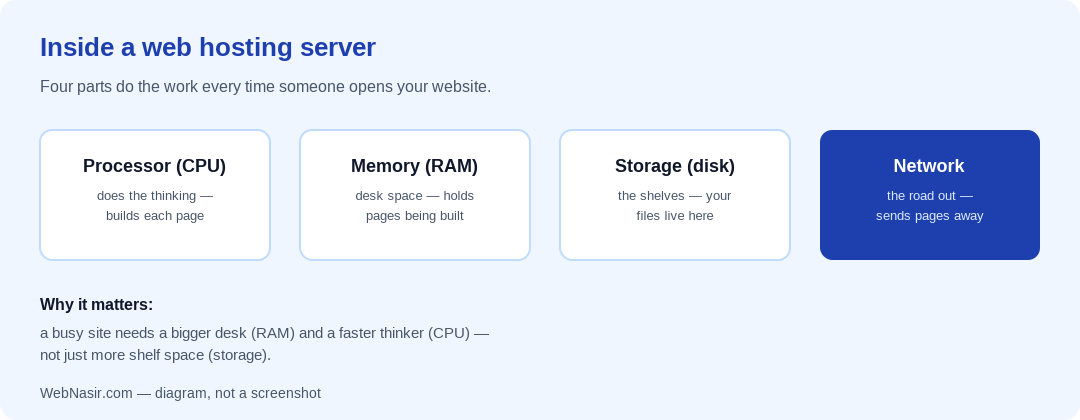
A server is an ordinary computer with ordinary parts, only bigger, tougher, and never switched off. There are four parts that matter for a website, and understanding them is the fastest way to read a hosting plan without being fooled by it. The processor does the thinking, the memory is the desk space, the storage is the shelves, and the network connection is the road the pages travel on.
The processor does the thinking
Every time someone asks for a page, the processor builds it. For a plain page that is a small job: read the file, send it back. For a WordPress site it is a bigger one: the processor has to ask the database for the post, fetch the theme, assemble the pieces, and only then send the finished page. A shop page with a basket, a search box and a dozen product photos is more work still. When a server feels slow, it is often the processor queuing up jobs faster than it can finish them.
Memory is desk space
Memory is where the work happens right now. Think of it as the size of the desk: a bigger desk lets the server keep more pages half-built and more visitors being served at the same time. When the desk is full, the server has to keep putting things away and taking them out again, and everything slows down. This is why a site that copes fine with ten visitors at once can crawl when a hundred arrive together — the work is the same, the desk is not big enough for all of it at once.
Storage is the shelves
Storage is where your files live when nobody is asking for them: pages, photos, the database, the emails. Modern servers use solid-state drives, which find files far faster than the spinning disks of the past, but the idea is unchanged — shelves hold things, they do not do the work. A plan that boasts about huge storage is boasting about the cheapest part of the machine. Storage matters, but it is almost never the reason a site feels slow.
The network connection is the road
Once the page is built, it has to travel back to the visitor, and the network connection is the road it travels on. A narrow road means a queue: pages leave one at a time, and the visitor at the back waits. A wide, well-connected road means pages leave quickly and the site feels instant. This is one of the real differences between a good host and a poor one — not the size of the shelves, but the quality of the road out of the building.
DNS in plain English: the phonebook that points your address to your server

DNS is the system that turns a name people can remember into an address computers can use. Your visitors remember webnasir.com; computers need the numerical address of the server where that site lives. DNS is the phonebook that connects the two. Every time someone opens your site, a DNS lookup happens first, before your server is ever contacted.
The lookup works through a chain of records. Your domain has nameservers — the address of the phonebook your domain uses — and inside that phonebook are records. The most important one for a website is the A record, which says: this domain name lives at this server address. There are other records too, for email and for proving you own the domain, but the A record is the one that puts visitors on your doorstep.
This is why moving hosts means changing where the name points, not changing the name itself. You keep webnasir.com, and you change the A record to the new server's address. It is like keeping your phone number and moving house: people still ring the same number, they just reach you somewhere new. The domain and the hosting stay separate things, even when you bought them from the same company.
One thing catches almost everyone out the first time: changes to DNS take time to spread. Copies of the phonebook are kept all over the world, and each copy refreshes on its own schedule. After you point a domain at a new host, some visitors may still reach the old server for a while, and you may see the new site while a customer still sees the old one. That is normal. If you have just moved and the old site still shows, wait a while before assuming something is broken — and check from a different network, like your phone data instead of your home Wi-Fi, to see what the rest of the world sees.
Email uses the same phonebook. The MX record tells the world where mail for your domain should be delivered, and it can point somewhere different from your website. That is how a business can host its site with one company and its email with another. It is also how email breaks during a careless move: change the website records and forget the mail records, and your messages quietly go nowhere.
Shared vs VPS vs cloud vs managed: how to pick a plan for your actual site
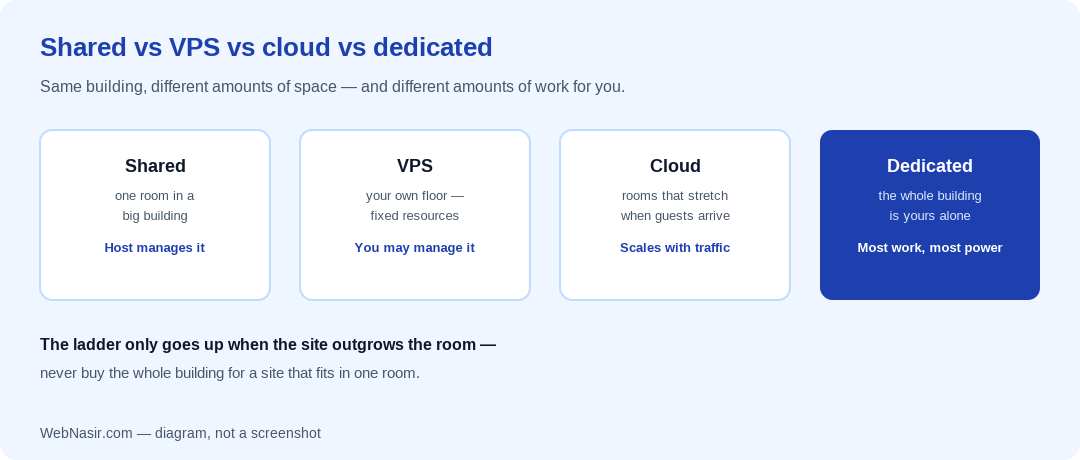
The four labels describe two things: who shares the machine with you, and who looks after it. Everything else — the price, the speed, the support — follows from those two answers. If you can answer them honestly for your own site, the right plan usually picks itself.
Shared hosting means your site lives on one machine alongside many other small sites, and the host looks after the whole machine. You never see the other sites, and they never see you, but you all draw from the same pool of processor, memory and road. It is the cheapest way to be online, and it is where most small business sites belong. The trade-off is real but small at this size: a neighbour having a busy day can make your site a little slower, and you cannot install whatever software you like.
A VPS gives you a fixed slice of a machine that is reserved for you alone. Your share of memory and processor is yours even when the neighbours are busy, and you get far more control — you can install things, change settings, run software a shared plan would never allow. The catch is the second question: who looks after the machine. An unmanaged VPS hands you the keys and the chores — updates, security patches, backups all become your job. A managed VPS hands the chores back to the host, and the price rises to match.
Cloud hosting spreads your site across several machines instead of one, so it can borrow more power when a rush arrives and keep going if one machine fails. It suits sites with uneven traffic — quiet most days, slammed when a post goes viral or a sale opens. The billing often follows the same idea: you pay for what you use, which is fair, but it also means a surprise rush can show up on the bill. Read how the billing works before you need it, not after.
Managed hosting is not a type of machine at all — it is a type of service. The host takes on the chores: updates, backups, security checks, speed tuning. You pay more and you give up some control, and in return you get your evenings back. For a business owner who would rather serve customers than maintain a server, that trade is often the whole point.
| Plan | Who looks after the machine | When it makes sense | Watch out for |
|---|---|---|---|
| Shared | The host, fully | First site, blog, small business pages | Busy neighbours can slow you down |
| VPS, unmanaged | You do | Custom software, and you can manage a server | Updates and security are your job |
| VPS, managed | The host, mostly | Growing store or busy site, no server skills | Costs more than shared for the same power |
| Cloud | The host, with you watching usage | Uneven traffic, spikes and sales days | A traffic rush can raise the bill |
| Managed WordPress | The host, fully | Business site on WordPress, no time for upkeep | Less control over what you can install |
So how do you actually choose? Start with shared unless you have a specific reason not to. Move up when you feel a real limit, not when a sales page suggests it: your shop takes real orders every day, your site slows down every evening, or you need software the shared plan will not run. And when you do move, move one step. Shared to a small managed VPS is a normal path. Jumping straight to the biggest plan is paying for empty rooms.
How email works with web hosting
A business email address like hello@yourbakery.in is not magic, and it is not a separate product by default. Most hosting plans include mailboxes, which means your host's machine also handles your email: it receives messages sent to your domain, stores them, and hands them to your phone or laptop when you open your inbox.
Sending and receiving are two different jobs, and your email app does both through the host. Sending goes out through the mail server, which checks that you are who you say you are and then delivers the message onward. Receiving is simpler: mail arrives at your domain's mail server and waits there until you fetch it. The setting that matters most is the one that keeps mail on the server, so your phone and your laptop both see the same inbox instead of each grabbing messages and hiding them from the other.
Spam filtering happens on the host too, before mail ever reaches you. A good filter quietly removes the obvious junk. But no filter is perfect, and an over-strict one can eat a real customer enquiry. If a customer says they emailed and you never saw it, the spam folder on the server is the first place to look — not your inbox, the server's spam folder, which your mail app may not even show you unless you check webmail.
Email is also the thing most often lost in a move between hosts. If your mail lives on your hosting, you must set up the mailboxes on the new side before you point the domain at it, or mail sent during the move has nowhere to land. And if you use an outside mail service, your mail records stay where they are while only the website moves. Either way, the rule is the same: move the mail first, test that it works, and only then move the website.
SSL certificates: what the padlock really does, step by step
The padlock in the browser is not a badge for good websites. It is a lock on the conversation between the visitor and your server. When the padlock is there, everything the visitor sends — a name in a form, a password, a card number — is scrambled before it leaves their device, and only your server can unscramble it. Anyone listening in between sees noise. Without it, the same details travel in plain text, readable by anyone on the same network.
The certificate is the identity card that makes the lock trustworthy. When a visitor opens your site, the browser asks the server to prove who it is. The server shows its certificate, which says this server really is the one behind this domain name. The browser checks that certificate against the authorities it trusts, and only then do the two sides agree on a secret code for the conversation. That whole exchange takes a fraction of a second, and it happens before a single word of your page is sent.
Most decent hosts now include a free certificate, usually from Let's Encrypt, and it does exactly the same scrambling as a paid one. Paid certificates mainly add things a small business rarely needs: a company identity check, or insurance. If a host tries to sell you a certificate as an expensive extra, ask what it does that the free one does not — for a shop, a blog or a booking page, the honest answer is usually nothing.
The padlock can break even when the certificate is fine. If your page loads an image, a font or a script over the old unprotected connection, the browser notices the mixed content and may drop the padlock or warn the visitor. This usually happens on older sites, or after a move from the unprotected address to the protected one without updating the links inside the pages. The fix is to make every part of the page load over the protected connection, not just the page itself.
Certificates also expire, and they must be renewed. A good host renews the free certificate automatically, and you never think about it. A host that does not will let it lapse, and your visitors will suddenly see a full-screen warning that the site is not safe — even though nothing about your site has changed. If you ever see that warning on your own site, the certificate is the first thing to check.
Backups and restores: how they actually work, and how to test one
A backup is a frozen copy of your site as it stood at one moment: the files plus the database that holds your posts, orders and settings. If something goes wrong — a bad update, a hacked page, a file deleted by accident — the backup is what lets you go back to that moment. Without it, you are rebuilding from memory, and memory is a poor backup.
Hosts make backups in two ways. A full backup copies everything, every time. It is simple and complete, but it takes space and time, so hosts usually do it weekly or daily at most. An incremental backup copies only what changed since the last one. It is faster and lighter, and it can run far more often, but restoring from it means stitching several pieces back together in the right order. You do not need to choose between them — most good setups use both, full copies for the safety net and incremental ones for the frequent saves.
Where the backup lives matters as much as how often it runs. A backup stored on the same server as your site is little help if the server itself fails. A backup stored in a different building — or with a different company — survives the things that kill the original. Ask your host where backups are kept, not just whether they exist. And keep your own copy too: download one regularly and store it somewhere you control, like your own computer or a separate storage account.
Restoring is the part nobody thinks about until they need it. You pick a date, and the host puts that copy back in place of the broken site. Two things surprise people. First, a restore rolls back everything after that date — the post you published yesterday, the order that came in this morning — so pick the newest backup that was taken before the problem started. Second, a restore is not the end of the job: you still have to find what caused the problem, or the same thing will break the site again the next day.
And a backup you have never tried is a hope, not a plan. Test one before you need it: ask your host to restore a copy to a test address, or restore it yourself on a spare setup, and open the result. Click around. Check the forms, the images, the latest posts. If the test restore works, you have something real. If it fails, you have found out on a quiet afternoon instead of during a crisis.
What to do when your website goes down

A dead website feels like an emergency, and the worst thing you can do in one is start changing things at random. Every change you make while guessing destroys evidence about what actually broke. The calm sequence below takes a few minutes, and it finds the cause more often than any amount of frantic clicking.
First, find out whether the site is down for everyone or just for you. Open it on your phone using mobile data instead of your home Wi-Fi. If it loads there, the problem is your connection, your router, or your own network — not your hosting. If it fails everywhere, the problem is real, and it is time to read the error message properly.
Second, read the error message word for word, and write it down or screenshot it. There is a world of difference between a page that says the server took too long, a page that says the address cannot be found, and a page that says the connection is not private. The first points at the server, the second at the domain or DNS, the third at the certificate. Support can do far more with the exact words than with a message that says the site is broken.
Third, ask what changed. Did you install a plugin, update the theme, edit a file, or change a setting just before it broke? Most sudden outages follow a recent change, and the fastest fix is often to undo exactly that one thing. Also check the boring expiries: has the domain run out, has the certificate lapsed, has the hosting bill gone unpaid? A site that dies on its renewal date has usually just run out of something.
Fourth, check whether your host knows about it. Most hosts run a status page that says whether their systems are having trouble, and it is worth a look before you raise a ticket. If the host is having a bad day, no amount of fiddling with your site will help, and your job is simply to wait and keep your customers informed.
Only then, if the site is still broken and the cause is not clear, restore the most recent backup from before the problem started — and then contact support with everything you found: the exact error, when it started, what you changed, and what you already tried. A support ticket that says the site shows a blank page since Tuesday morning, right after I updated the theme, gets answered far faster than one that says it is not working.
Why two sites on the same hosting can feel completely different speeds
Hosting sets the ceiling for how fast a site can be, but the site itself decides how close it gets to that ceiling. Put two sites on the same plan and one can feel instant while the other crawls, and the hosting is not the difference. The difference is what each site asks the server to do on every visit.
Images are the usual culprit. A photo straight from a phone can be several megabytes, and a page with ten of them asks the visitor's connection to carry a heavy load before anything appears. Resizing photos to the size they are actually shown at, and compressing them before uploading, is the single biggest speed win on most small business sites — bigger than any hosting upgrade.
Then there is everything the site builds on each visit. Every plugin, every extra feature, every pop-up and chat box adds work the processor must do before the page can leave the server. A site with thirty plugins is asking for thirty small jobs on every single visit, even for visitors who never touch those features. Turning off what you do not use is free speed.
Caching is the shortcut that changes the arithmetic. Without it, the server builds every page fresh for every visitor, even though the page is the same each time. With caching, the server builds the page once and hands out ready-made copies to the next hundred visitors. It is the difference between cooking every meal from scratch and serving from a pot that is already on the stove. Most hosts include caching, and most WordPress sites benefit from a caching plugin as well — but caching is not magic, it only helps if the pages being cached are worth serving as they are.
Distance plays a part too. A visitor far from the server waits longer for every piece of the page, because the signal has further to travel and more stops on the way. That is why the earlier advice about server location matters: a server near your visitors is worth more than a slightly bigger plan on the far side of the world. A content delivery network takes the same idea further — it keeps copies of your files in many cities, so each visitor fetches them from somewhere nearby instead of from one building far away.
So when a site feels slow, check the site before blaming the host. Slim the images, switch off the plugins you forgot about, make sure caching is actually on, and only then ask whether the plan itself is too small. A bigger plan will not fix a page carrying ten uncompressed photos and thirty plugins — it will just carry the same weight slightly faster.
The data centre: the building your website actually lives in
Your website does not live in the cloud in any literal sense. It lives in a building — a data centre — full of racks, which are tall metal frames that hold rows of servers like books on shelves. The building exists to solve four problems that a normal office cannot: power, cooling, security, and connection.
Power is the first. A data centre has backup generators and batteries, so a power cut in the street does not switch your website off. Cooling is the second: hundreds of servers in one room make a great deal of heat, and the building is designed to carry that heat away around the clock. If the cooling fails, the servers slow down or shut themselves off to protect themselves — which is why a good data centre treats cooling as seriously as power.
Security is the third. The building is locked, guarded, and watched, because the machines inside hold other people's businesses. And connection is the fourth: a data centre is plugged into the internet with several separate routes, so if one cable or provider fails, traffic simply takes another road. A single office connection cannot offer that, and that is a large part of what you are paying a host for.
The location of that building is why server location keeps coming up. A data centre in Mumbai serves Indian visitors faster than one on another continent, for the simple reason that the signal travels less far. When a host lets you pick a location, pick the one closest to the people who actually visit your site — not the one closest to you, and not the default, which may be on the other side of the world.
Managed hosting, WordPress hosting and reseller hosting: what those labels mean
Hosting labels are partly honest descriptions and partly marketing, and the only way to tell the difference is to read what is actually included. Three labels cause the most confusion, so here they are in plain English.
WordPress hosting means the servers are set up with WordPress in mind: the software is installed for you, updates are handled, and the server is tuned for how WordPress builds pages. It is a sensible choice if your site is WordPress and you have no interest in the machinery underneath it. What it does not mean is that the site looks after itself — you still need to keep your content, your theme and your plugins in order.
Managed hosting, as covered earlier, means the host takes on the chores: updates, backups, security checks, speed tuning. The word managed describes the service, not the machine, so you can have a managed shared plan or a managed VPS. The question to ask is always the same: which chores, exactly? A host that says it manages security but leaves updates to you has not told you the whole story.
Reseller hosting is a business model, not a technology. You rent a large slice of a server and sell smaller slices to your own clients — this is how many small web designers start, hosting the sites they build for their customers. If you are a business owner, you do not need it. If you are a designer with ten clients, it can be cheaper and simpler than ten separate plans — but remember that when your clients' sites go down, they ring you, not the host.
A useful habit: whenever a plan name sounds impressive, ignore the name and read the included list. Storage, backups, SSL, email, support hours, and the renewal price — those six lines tell you what you are buying. The label on the front tells you what the host wants you to feel.
Web hosting questions clients ask me most
Do I own my website if I rent hosting?
Yes. The hosting is rented, but the website is yours: your files, your words, your photos, your database. The domain is yours too, as long as you keep renewing it. Renting the land does not give the landlord your house. That is exactly why you should keep your own backup — ownership means nothing if the only copy of your site sits on a machine you do not control.
Can I change hosts later?
Yes, and it happens all the time. Your files and your database move with you, your domain stays yours, and the move itself is the sequence described earlier: copy everything, test it on the new side, then point the domain at it. The only thing that can trap you is a host that makes it hard to take your files away — which is why the exit matters before you buy, not after you want to leave.
What happens if I stop paying?
The host will suspend the site first, which means visitors see nothing, and after a grace period it will delete the files. That grace period varies, and you should not rely on it. If you are closing a site on purpose, download a full backup before the last payment date, and keep the domain if you might ever want the name back — a lapsed domain can be registered by someone else.
Do I need hosting if I use a free website builder?
Not separately, because the builder includes hosting invisibly — your pages live on the builder's machines, and you never see the server. The trade is control: you cannot move that site to another host the way you can move a WordPress site, and you live by the builder's rules and prices. For a quick page it is fine. For a business you plan to grow, owning the hosting yourself keeps your options open.
Can one hosting plan hold several websites?
Many plans allow extra domains, which means several sites can live on one account. Each site still needs its own share of processor, memory and road, so five busy sites on a small plan will crowd each other just like five neighbours in one building. One plan for several small sites is sensible. One small plan for several busy sites is not.
Does hosting affect my search ranking?
Indirectly, yes. Search engines care about whether visitors can reach your pages quickly and reliably, and both of those depend on hosting. A site that is often down or slow to answer will not rank as well as the same content on a fast, reliable host. But hosting alone cannot rank a site — it can only stop holding it back. Good hosting removes an obstacle; it does not create the content that earns the ranking.
The short version: what is web hosting, in one paragraph
What is web hosting? It is renting space on a computer that never switches off, so that your website's files have somewhere to live and someone to hand them to every visitor who asks. The domain is the address, the server is the building, DNS is the phonebook that connects the two, and SSL is the lock on the door. Start small, on shared hosting, with a host that includes free SSL and backups and shows you the renewal price honestly. Keep your own copy of your site. And remember the one thing this whole page comes back to: hosting is a service, not a product — you are paying for someone to keep your business reachable, so choose the someone carefully.
If you read nothing else on this page, read this: buy the smallest plan that honestly fits your site today, from a host whose support answers and whose renewal price you have seen with your own eyes. Your site can grow into a bigger plan when it needs to. It cannot grow on a host you cannot reach, a plan you cannot leave, or a backup you never made.