
Hosting · India ₹
Cheapest Web Hosting in India 2027: 7 Budget Hosts Compared (₹ Prices + Renewal Rates)
“Cheapest” hosting is not the smallest number on the banner. It is the smallest total you pay over the years you keep the site — intro price + renewal + GST + the add-ons you actually need. This guide to the cheapest web hosting in India compares the 7 budget hosts from our research the honest way, in ₹ terms, so a beginner in India can buy once and not regret it at renewal.
What “cheap” really costs
Three numbers decide your real cost: (1) Intro price — discounted, usually needs a long term. (2) Renewal rate — the normal price you will pay every term after. (3) GST & conversion — international hosts bill in USD; the ₹ you finally pay includes conversion (and GST treatment varies by host) — always judge the checkout total, not the homepage price. During Black Friday week (to 30 Nov) intro prices drop further — see Guide #1 — but renewal logic does not change.
Black Friday deals (end 30 Nov) →
Cheapest web hosting in India: 7 budget hosts compared
| Host | Position in ₹ terms | Renewal behaviour | Best for |
|---|---|---|---|
| Hostinger | Lowest intro tier in this list on long terms | Renewal much higher than intro — long first term is the value play | First WordPress site on a tight budget |
| HostArmada | Budget cloud-shared positioning | Check renewal per tier at checkout | Beginners who value support replies |
| ChemiCloud | Mid-budget, support-led | Moderate gap; verify free extras at renewal | WordPress sites you plan to keep for years |
| DreamHost | Simple, transparent budget pricing | Less dramatic intro/renewal theatre | Bloggers who hate upsells |
| HostPapa | Budget shared with business extras | Renewal higher — price the second term before buying | Small business email + site together |
| GreenGeeks | Very low intro in sale periods | Steep renewal gap — only wins with long prepay | Eco-conscious buyers who prepay long |
| InMotion | Business-budget, US-centric | Higher renewal; support is the value | Small business sites targeting US visitors |
Exact ₹ figures are intentionally not frozen in this table: hosts change intro prices with every sale and your ₹ total depends on term, USD rate and GST at checkout. The ranking logic above — intro position + renewal behaviour — is what stays true. Verify your final ₹ total on the checkout screen; if renewal is not shown, ask support before paying.
What beginners actually need (ignore the rest)
- Free SSL (Let's Encrypt) — non-negotiable.
- 1-click WordPress install + automatic backups (or a backup plugin from day one).
- Support that answers beginners — test it with a pre-sales question.
- Servers near your visitors: Mumbai or Singapore locations are fastest for India.
- Enough storage/bandwidth for one growing site — you do not need “unlimited everything”.
Shared vs cloud vs VPS — which for a first site?
| Type | Cost | Pick when |
|---|---|---|
| Shared | Lowest ₹ | First blog/business site — 90% of beginners |
| Cloud shared / managed cloud | Mid ₹ | Traffic growing, you want speed without server admin |
| VPS | Highest of the three | You need custom software/server control — not for a first WordPress site |
How to buy & set up WordPress in an afternoon
- Buy hosting + domain (longest sensible term), save the invoice.
- Run the 1-click WordPress installer; set strong admin credentials.
- Enable free SSL, force HTTPS, install backup + security basics.
- Choose a light theme, create Home/About/Contact/Privacy pages, write your first guide.
Mistakes to avoid
- Long lock-in on an untested host — cheap is not cheap if support is missing when you need it.
- Renewal shock — set the renewal reminder the day you buy.
- No backups — one bad update without a backup can erase a year of posts.
- Buying “pro” add-ons at checkout you can add later for the same price.
How to evaluate a budget host before you pay — seven tests that take one evening
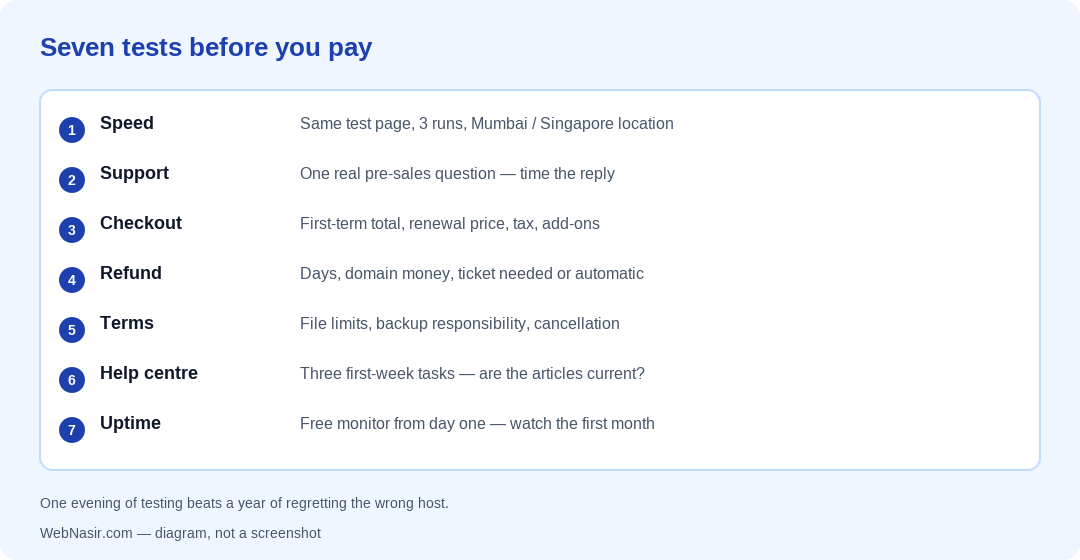
The comparison table above tells you where each host sits, but it cannot tell you which one will treat your site well, because the things that decide that — real speed on your pages, real support replies, real renewal behaviour — are not printed on any pricing page. The good news is that you can test all of them before you commit to a long term, and the whole test takes one evening. The method below needs no technical background: a free speed-testing site, one pre-sales question, and a careful read of two pages every host is required to publish. Do it before you pay, not after, because the two protections that matter most — the money-back window and the renewal price — are both much harder to use once the payment has gone through and the site is already live on the account.
Start with speed, because it is the only claim you can measure in numbers without spending anything. Every host publishes demo pages or lets you run a free trial, and several independent tools will load a page from a test location and report the time to first byte — the delay before the server sends anything — and the full load time. Pick the same simple test page for every host you compare: a fresh WordPress install with the default theme and one image is enough, because you are comparing servers, not themes. Run the test three times at different hours and take the middle result, since a single run can be flattered by a quiet server or ruined by a busy one. What you are looking for is not a single magic number but a gap: if one host answers in roughly half the time of another on the same test, that gap will still be there when your real site, with its real theme and plugins, goes live. Also test from a location near your visitors — Mumbai or Singapore if your readers are in India — because a server in the United States can look fast to a test run from the United States and slow to the readers who actually matter to you.
The second test is support, and it is the one most beginners skip and most regret skipping. Before you buy, send the host's support team one real question about the plan you are considering — something you genuinely do not know, such as whether the plan includes automatic daily backups you can restore yourself, or what happens to your email if you move your domain away later. Do not ask a question you can answer from the pricing page, because a sales page can answer that; ask something that needs a human who knows the product. Note three things: how long the first reply takes, whether the reply actually answers what you asked instead of pasting a generic paragraph, and whether the person offers a next step or a link to the exact setting. A host whose pre-sales reply is slow, vague, or copy-pasted will not become fast, specific, and helpful at 2 a.m. when your site is down. If the host offers both live chat and tickets, test the channel you would actually use in an emergency, and test it at the hour you are usually awake — support that is excellent at noon and absent at midnight is a different product for a night-owl blogger.
The third test is the checkout page itself, and it is where most of the money is quietly decided. Go through the purchase flow up to the final payment step — without paying — and read every line. The price you saw on the homepage is almost never the price on the checkout page: the term may have changed to a longer one, add-ons may be pre-ticked, and tax may appear only at the end. Write down four numbers before you close the tab: the first-term total, the renewal price for the same term, the tax added, and the price of every pre-ticked add-on. If the renewal price is not shown anywhere in the flow, that is itself an answer — treat it as a warning, and ask support in writing before you pay, so you have the reply saved. The hosts that are proud of their renewal price show it; the ones that hide it are telling you something about what that number looks like.
The remaining tests are document checks, and they take twenty minutes with a cup of tea. Read the refund policy in full — not the headline on the pricing page, but the actual policy page — and note the number of days, whether domain registration money is refunded, and whether the refund is automatic or needs a support ticket and a reason. Read the terms of service section on resource limits, which is where the word unlimited is defined in practice; the section on backups is next, and it tells you who is responsible when data is lost. Finally, search the host's own help centre for two articles: how to restore a backup yourself, and how to cancel. If either article does not exist, or if cancellation requires a phone call or a chat with a retention agent, weigh that in the decision — leaving a bad host should be as easy as joining a good one. None of these pages is exciting reading, but together they predict the next three years of your relationship with the host far better than any review score does.
- Speed: same test page, three runs, Mumbai or Singapore location — compare the middle result.
- Support: one real pre-sales question; time the reply and check whether it actually answers.
- Checkout: first-term total, renewal price, tax, and every pre-ticked add-on — written down before paying.
- Refund: days, domain money, and whether it needs a ticket.
- Terms: resource limits, backup responsibility, and how cancellation works.
Intro price vs renewal price: the maths that decides the real cheapest host
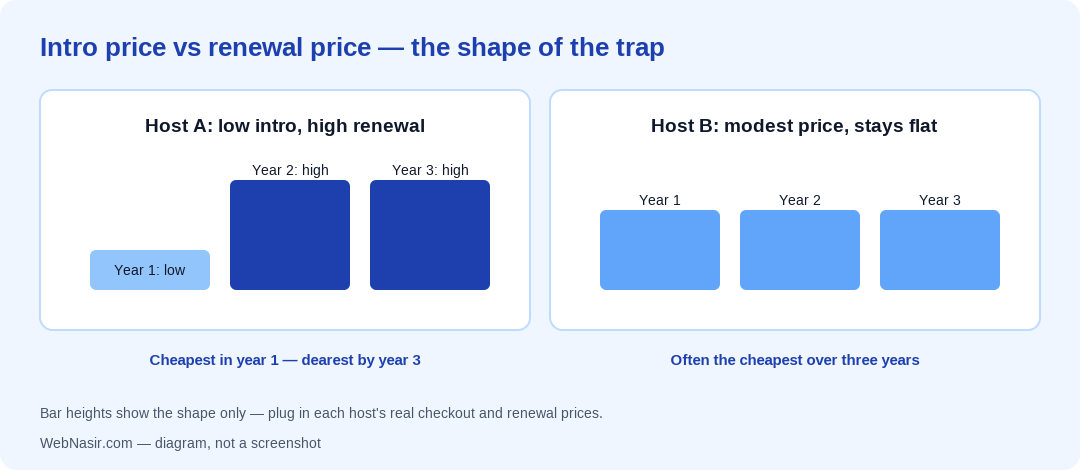
The single most expensive misunderstanding in budget hosting is treating the intro price as the price. It is not the price; it is the first term's price, and on most budget plans the first term is the only cheap one. A plan can honestly advertise a low monthly figure while charging several times that figure from the second term onwards, because the advertised figure is the intro rate divided across a long first term — often two to four years paid upfront — and the renewal rate is a different, higher number that only appears in small print or at checkout. The host is not lying; the structure is disclosed. But a buyer who compares intro prices is comparing first-year discounts, not hosting costs, and the host with the lowest banner price very often has the highest three-year total. That is the trap, stated plainly: the cheapest host is the one with the lowest total over the whole period you will actually keep the site, not the one with the lowest number on the homepage.
The fix is a five-minute calculation you should do for every host on your shortlist, using only numbers from that host's own checkout page. Take the first-term total as shown at checkout — the amount you will actually pay today, including tax. Then find the renewal price for the same plan and the same term length, which is shown on the pricing page, in the checkout flow, or in the reply to your pre-sales question. Add the two together and you have the honest cost of the first two terms. Then extend it: multiply the renewal term price by the number of further terms you expect to stay, and add that in. The result is the total cost of ownership for, say, three or four years, and it is the only number worth comparing across hosts. Two hosts can swap places completely once you do this: the one that looked cheapest for year one can be the most expensive by year three, and the one with the modest discount can be the cheapest overall because its renewal is close to its intro price.
Term length is the lever inside this calculation, and it deserves its own careful look. Budget hosts price by term: the longer you prepay, the lower the monthly figure looks, because the discount is spread over more months. A four-year prepay can halve the advertised monthly price compared with a one-year term on the same plan, which is why the banner numbers always assume the longest term. But the long term only saves money if you stay, and staying is a bet on a host you have not yet used. The sensible middle path for a first site is to take the longest term whose renewal behaviour you have already checked and whose refund window you have already read — and to treat a very long first term on an untested host as a risk, not a bargain. If the host offers a monthly or annual term at a higher monthly figure, work out what the extra cost buys you: the freedom to leave after a year without having prepaid three more. For many beginners, that freedom is worth more than the discount, because the cost of migrating away from a bad host — in time, in downtime risk, in lost email — is larger than the saving.
Black Friday and other sale weeks make this calculation more important, not less. During a sale the intro price drops further — sometimes dramatically — while the renewal price usually stays exactly where it was, because the sale discounts the first term only. That means a sale is the best time to buy a host you have already chosen, and the worst time to choose a host, because the gap between the sale price and the renewal price is at its widest and the banner is at its most persuasive. The article's original note stands: during Black Friday week intro prices drop further, but renewal logic does not change. So if you are buying in a sale, run the same total-cost calculation with the sale price in the first term and the ordinary renewal price after it, and ask yourself whether you would still buy this host at its renewal price alone. If the answer is no, the sale is not saving you money; it is lending you a cheap first year at the cost of an expensive second one. The hosts in the comparison table above are ranked on exactly this logic — intro position plus renewal behaviour — rather than on any single sale price, because sale prices expire and renewal prices do not.
One more number belongs in the calculation and is easy to forget: the add-ons. Budget checkouts commonly pre-tick extras — a site security scan, a premium backup service, an SEO tool, a domain privacy option — each small on its own and significant together. Some of these are genuinely useful; many duplicate something WordPress already does for free, or something the plan already includes under a different name. The rule is simple: buy the hosting first, with every add-on unticked, and add extras later only when you know you need them, because almost every add-on can be bought after the purchase at the same price, while a pre-ticked add-on is money spent before you have even seen the dashboard. Keep the invoice from the purchase, and on the same day set the renewal reminder described in the final section — the two cheapest habits in hosting are a saved invoice and a calendar alert, and they cost nothing.
| What to write down | Where to find it | Why it matters |
|---|---|---|
| First-term total (with tax) | Checkout page, before paying | The only intro number that is real money |
| Renewal price, same plan and term | Pricing page, checkout, or support reply in writing | Decides year two onwards — usually the bigger number |
| Pre-ticked add-ons and their prices | Checkout page | Small extras that add up; almost all can be added later |
| Refund days and domain refund | Refund policy page | Your exit if the host disappoints in week one |
What “unlimited” really means on a budget plan
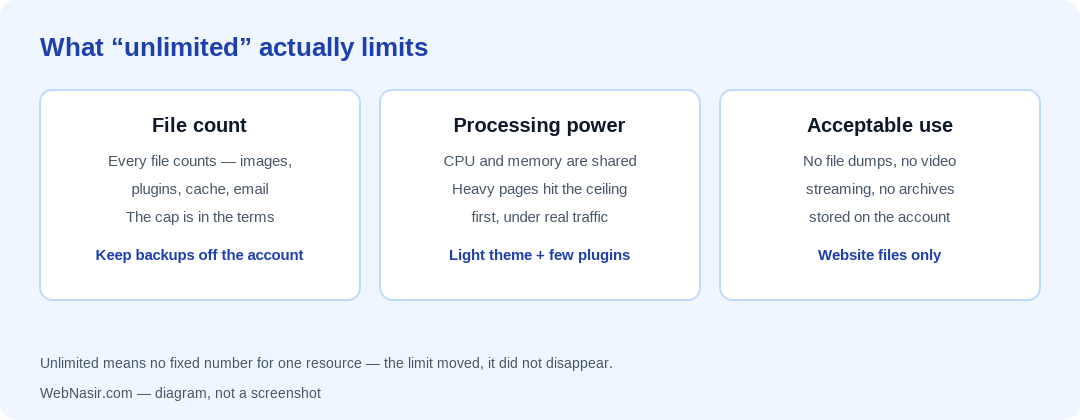
The word unlimited appears on almost every budget hosting plan, usually next to storage or bandwidth, and it is the most misunderstood word in the whole industry. It does not mean infinite. No host has infinite disk space or infinite network capacity, and no plan at a budget price could offer it. What unlimited means in practice is that the host has not set a fixed number for that one resource, and instead limits your site in other ways that are written into the terms of service. The honest reading is this: unlimited storage means you will not hit a storage number, but you may still hit a limit on the number of files, on how much processing power your site can use at once, on how many visitors can be served at the same time, or on how much of the server's resources one account is allowed to consume before it is slowed down. The limit has moved, not disappeared, and the terms page is where it lives.
The file-count limit is the one that surprises beginners first, because it has nothing to do with how big the files are. Every file on a hosting account — every image, every plugin file, every cached page, every email — counts as one item, and shared plans set a maximum count, often described in the terms as an inode limit. A WordPress site with a few plugins and a few hundred images can reach tens of thousands of files without the owner ever noticing, and a site that stores email on the server or keeps many backup copies on the same account can climb much faster. When the count is reached, the symptoms are confusing: uploads fail, emails bounce, updates refuse to run, and the dashboard insists there is plenty of disk space left — because there is. The fix is to find the number in the terms before you buy, to keep backups off the hosting account, and to avoid using the hosting account as a file dump for things that belong in cloud storage. If a host will not state the file-count limit in writing, treat that as a gap in the information, not as proof that there is no limit.
Bandwidth is the second unlimited that needs translating. On a budget shared plan, unlimited bandwidth means the host does not charge you per gigabyte transferred, which is genuinely useful — but it does not mean your site can serve unlimited visitors. The real constraint is how much work the shared server can do at once: each visitor's page request uses processor time and memory, and a shared server divides those among dozens or hundreds of accounts. A small blog with a light theme may never notice this; the same blog with a heavy page builder, a dozen plugins, and unoptimised images will hit the ceiling much sooner, and the symptom is the same every time — the site becomes slow under traffic, exactly when more visitors are arriving. The practical test is not the bandwidth number but the behaviour under load, which is why the speed test in the first section matters: a host that serves your test page quickly while quiet may still struggle when several visitors arrive together, and the only way to know is to test with a realistic page rather than an empty one.
The third hidden limit is the acceptable-use clause, and it is the one that can actually get a site suspended. Unlimited plans almost always exclude certain uses in the terms: storing files that are not part of a live website, running file-sharing or backup archives, hosting video for streaming, or running software that consumes server resources continuously. A beginner is unlikely to do any of these deliberately, but two common accidents fall into the same category: keeping years of backup archives on the hosting account, and uploading large video files to the media library instead of embedding them from a video platform. Both look harmless from the dashboard and both can trigger a warning from the host. The rule that prevents nearly all of it is simple: the hosting account holds the website and nothing else — backups live elsewhere, videos live on a video platform, and large downloads live on a storage service built for them. Read the acceptable-use section once, keep your account to website files only, and unlimited will never become a problem for you.
Speed for Indian visitors: what to measure and how
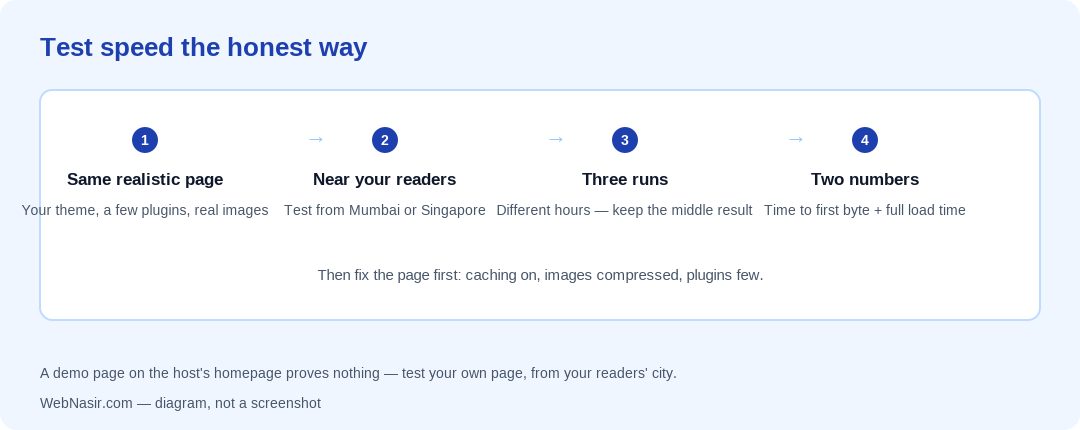
Speed is the one hosting quality your visitors feel directly, and it is also the one most buyers judge by the wrong evidence — a demo site on the host's own homepage, or a review that tested from a city on another continent. A demo site is hosted on the host's best configuration and stripped of everything that makes a real site slow; a test from far away measures a different network path from the one your readers will use. The only speed evidence worth trusting is a test of a realistic page, from a location near your readers, run more than once. If your readers are in India, that means a test location in Mumbai or Singapore, a page built the way yours will be built — WordPress, your theme or a similar one, a few plugins, a few images — and three runs at different times of day, keeping the middle result. That is a small amount of work and it is the difference between choosing a host and guessing at one.
The first number to look at in a speed test is the time to first byte, which is the delay between the request and the first piece of the page arriving. It is mostly the server's doing: how far away it is, how busy it is, and how quickly it can assemble the page. A server in Mumbai answering a reader in Mumbai will almost always beat a server in the United States answering the same reader, because the request simply travels less distance, and that gap survives every optimisation you can apply later. This is why the original shortlist in this guide mentions server location explicitly — Mumbai or Singapore locations are fastest for India — and why it is worth checking the host's data-centre list before you buy rather than after. Some budget hosts let you choose the data centre when you sign up; some assign one automatically; some offer only locations far from India on their cheapest plan and keep the nearby ones for higher tiers. That detail belongs in your decision, because no plugin can move a server closer.
The second number is the full load time, which is the time until the page is usable, and it is a shared responsibility between the host and you. The host controls the server response and the network; you control the weight of the page — the size of the images, the number of plugins, the heaviness of the theme, and whether caching is switched on. A fast host cannot rescue a page with five megabytes of uncompressed images, and a slow host will drag down even a light page, so the honest way to read a load-time result is to ask what it would look like with your real content on it. The most useful free test is to load your own future homepage: if you already have a site elsewhere, copy one real page to the trial account and test that. If you do not, build the test page with the theme you intend to use and three images at the size you intend to publish. The number that comes back is then a prediction, not a brochure figure.
Three free optimisations matter more than any hosting upgrade for a beginner, and they are worth doing on day one whatever host you choose. First, switch on the caching the host provides — most budget plans include a caching layer or a one-click cache plugin, and it turns repeat visits from a full page rebuild into a served copy, which is often the single biggest speed gain available. Second, compress images before uploading them: a photograph straight from a phone can be several megabytes, and the same image compressed for the web can be a tenth of the size with no visible difference, which is a larger saving than any server upgrade buys. Third, keep the plugin count small and remove the ones you do not use, because every active plugin adds work to every page load. Do these three, test again, and you will know how much of your speed is the host and how much was the page — which is exactly the knowledge you need when the renewal comes around and you have to decide whether to stay or move.
- Test from Mumbai or Singapore if your readers are in India — distance is the one factor no plugin can fix.
- Read time to first byte for the server, and full load time for the whole page.
- Test a realistic page: your theme, a few plugins, real images — not an empty install.
- Switch on caching, compress images before upload, and keep plugins few.
Uptime: what 99.9% actually allows
Every budget host promises an uptime figure, and nearly all of them promise the same one: 99.9%. It sounds like perfection — a site that is almost never down — but the arithmetic says something more ordinary. A month has about 43,200 minutes in it, and 0.1% of that is about 43 minutes, which means a host can be down for roughly three quarters of an hour every month and still honestly claim 99.9% uptime. Over a year that is more than eight hours of downtime, which is a long time for a shop that takes orders or a blog whose readers arrive from a search result and never come back. The promise is not false, but it is much weaker than it sounds, and the difference between 99.9% and 99.99% — about four minutes a month instead of forty-three — is the difference between a host that takes reliability seriously and one that merely meets the industry's minimum marketing number.
The second thing to understand is what happens when the promise is broken. Most uptime promises come with a service-level agreement, and the agreement usually offers a credit — a small refund against the next bill — if uptime falls below the promised figure in a given month. But the credit is almost never automatic: you have to notice the downtime, measure it yourself, and file a claim within a window the agreement specifies, often with evidence from your own monitoring. Many buyers never do this, which means the guarantee costs the host very little in practice. Before you buy, read the agreement once and note three things: the exact percentage promised, whether the credit is automatic or must be claimed, and whether planned maintenance counts against the figure — on some plans it does not, which means the host can take the server down for maintenance and still report perfect uptime. A guarantee you have to claim yourself is worth less than a host that rarely goes down in the first place.
The practical answer is to measure uptime yourself, because it is free and it takes five minutes to set up. Free monitoring services will check your site every few minutes from outside and email you the moment it stops answering, and they keep a record you can compare against the host's own status page. Set one up on the day the site goes live, and keep it running through the money-back window — the first month is when you most need the evidence, because it is the only month in which leaving is free. Pay attention to the pattern, not just the total: a host that is down for two minutes ten times a month is a different problem from one that is down once for forty minutes, because frequent short outages usually mean an overloaded shared server, while one long outage can be a single incident that was handled well. Also note when the outages happen: downtime at 3 a.m. Indian time matters less to an Indian audience than downtime at 8 p.m., when your readers are actually online.
One honest caveat belongs here: no budget shared host can promise the uptime of a large platform, and no monitoring tool can prove a host is perfect — it can only prove what it observed. What you are really buying with a higher uptime figure is a host that invests in spare capacity, in monitoring of its own, and in engineers who respond at night. Those things show up in the support test and the speed test as much as in the uptime number, which is why the sections of this guide reinforce each other rather than standing alone. If a host is fast, answers support quickly, and shows a clean month on your own monitor, you have three independent pieces of evidence pointing the same way, and that is a far better basis for a renewal decision than any single percentage on a pricing page.
| Uptime promised | Downtime allowed per month | Downtime allowed per year | What it feels like |
|---|---|---|---|
| 99.9% | About 43 minutes | About 8 hours 45 minutes | Noticeable: readers will hit it |
| 99.95% | About 22 minutes | About 4 hours 20 minutes | Better, but still real downtime |
| 99.99% | About 4 minutes | About 52 minutes | Rarely noticed by visitors |
Backups: the question that matters more than the price
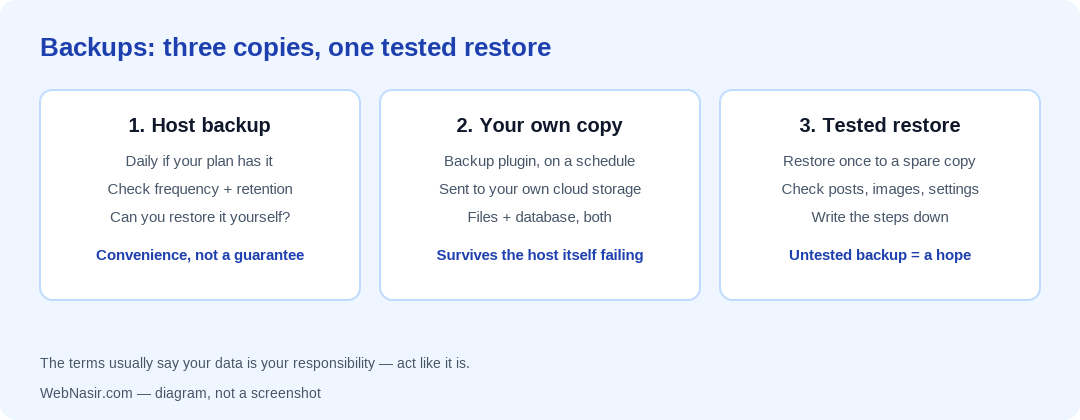
Ask any experienced site owner what they would pay to get their site back after a disaster, and the answer is always more than the price of the hosting that lost it. A site is years of writing, and the only thing standing between a bad update and losing all of it is a backup that actually exists, is actually complete, and can actually be restored. The uncomfortable truth about budget hosting is that backup responsibility is shared in a way the pricing page rarely explains: the host may take backups of the server, but the terms usually say that the owner — you — is responsible for your own data, and that the host's copies are a courtesy rather than a guarantee. That sentence, buried in the terms, is the one that decides what happens on the worst day of your site's life, so read it before you buy, not after something goes wrong.
Four questions determine whether a host's backup is worth anything to you, and all four can be answered from the plan page, the help centre, or one pre-sales message. First, how often are backups taken — daily, weekly, or only on some plans — because a weekly backup means losing up to a week of posts when you restore. Second, how long are backups kept — a single rolling copy is far weaker than thirty days of daily copies, because a problem you discover a week late cannot be fixed from a backup that was already overwritten. Third, can you restore a backup yourself from the dashboard, or does restoring require a support ticket and a wait — the difference matters at midnight, when a ticket queue is the last thing you need. Fourth, does the backup include everything: the files, the database, and the email if your email lives on the same account. A backup that saves the files but not the database saves the theme and the images while losing every word you ever wrote, which is the worst kind of partial protection because it looks complete until the day you need it.
Even a perfect host backup is not enough on its own, and the reason is simple: the backup lives on the same service as the site it protects. If the hosting account itself is the problem — a billing failure, a hacked account, a host that goes out of business — the backup goes with it. The professional habit, and the one this guide recommends without hesitation, is the three-copy rule in its simplest form: one copy on the host, one copy somewhere else that you control, and one copy you can reach without the host at all. In practice that means installing a backup plugin on day one that sends a copy to your own cloud storage on a schedule — daily for an active blog, weekly for a quiet business site — and testing the restore, not just the backup. A backup you have never restored is a hope, not a backup, and the test costs nothing: restore to a staging copy or a spare folder once, check that the posts and images are all there, and write down the steps while you still remember them.
The restore test also teaches you the most useful fact about your host: how long recovery actually takes. Some hosts restore in minutes from the dashboard; some take hours and a ticket; some charge a fee for a restore on cheaper plans, which is a detail that only appears in the plan's fine print and is worth knowing before the emergency rather than during it. If your host charges for restores, or keeps only one backup, or takes backups weekly on your plan, none of that is a reason to reject the host on its own — it is a reason to make your own independent backup the primary one and treat the host's copy as a convenience. The cheapest host in this comparison is not the one with the best backup, and the host with the best backup is not automatically the cheapest; the right choice is the host whose backup gaps you have already covered yourself, so that no single failure — theirs or yours — can take the site away.
Moving hosts without breaking your site
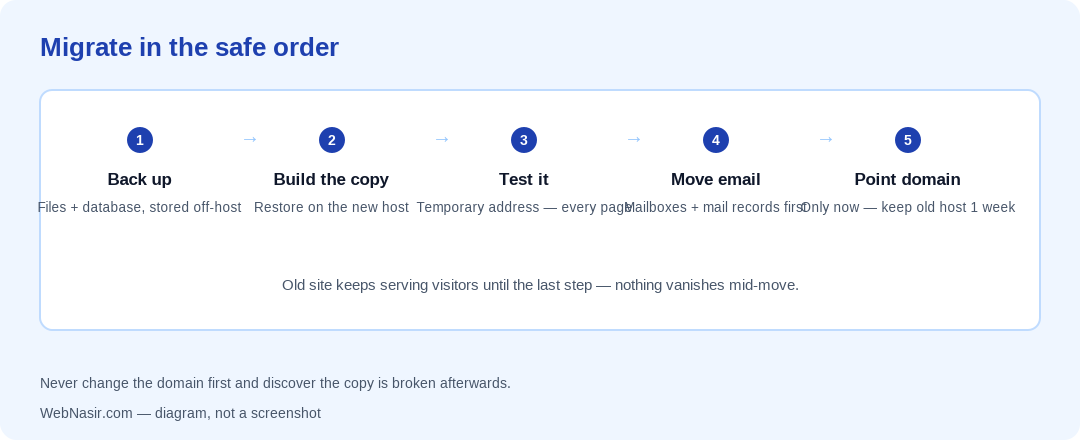
Almost every beginner worries about choosing the wrong host, and almost none of them needs to, because moving a WordPress site from one host to another is a routine job — provided you do it in the right order. The fear comes from imagining the site vanishing during the move; the reality, done properly, is that the old site keeps serving visitors until the very last step, and the new site is fully built and tested before anyone is sent to it. The order is the whole secret: build the copy first, test the copy, and only then point the domain at it. Every migration disaster comes from reversing those steps — changing the domain first and then discovering the copy is broken, with visitors arriving at an error page while you try to fix it under pressure.
The practical sequence starts with a full backup of the existing site — files plus database — made with a migration or backup plugin, and stored somewhere you can reach without either host, such as your own computer or cloud storage. Then, on the new host, install WordPress and restore the backup into it, or use the new host's free migration service if one is offered. The next step is the one most people skip and most need: test the copy properly before changing anything public. Most hosts give you a temporary address for the new site, and that address lets you click through the homepage, open several posts, check the images, submit the contact form, and confirm the admin area works — all while your visitors are still happily using the old site. Only when the copy passes that test do you change the domain's name servers or DNS records to point at the new host, and from that moment visitors gradually arrive at the new site as the change spreads across the internet, which can take anything from minutes to a day.
Email is the part of a migration that causes the most silent damage, because a site can look perfectly moved while the email is quietly broken. If your email addresses live on the old host — the common setup for a small business, where the same account hosts both the website and the mailboxes — then moving the website without moving the email means new mail keeps arriving at the old host, where nobody is looking, or bounces entirely. Before you change the domain, write down exactly where your email lives, where the DNS mail records point, and whether the new host will host the mailboxes or whether you use a separate mail service. Move the mailboxes first or at the same time, recreate the same addresses on the new side, and send yourself a test message from an outside account after the switch. This one check prevents the most common migration regret: a business that moved its site on a Friday and discovered on Monday that a week's enquiries had gone nowhere.
Free migration is a feature worth asking about, because it changes the cost of leaving a host from a weekend of your time to a support ticket. Several budget hosts offer to move one site for free, usually done by their own team within a day or two, and for a beginner that service is worth more than a small price difference between plans. But read what it covers before you rely on it: some free migrations move the website only and not the email; some cover one site and not five; some are done only once, so a second move later is charged. And whatever the offer, keep your own backup from the start of the process until a week after the move is finished — the new host's copy is not your safety net until you have verified it, and the old account should not be cancelled until the new site has served real visitors for several days. Cancel the old host only after the new one has proven itself, because the price of keeping both for one extra month is trivial compared with the price of discovering a problem after the old copy is gone.
- Back up everything — files plus database — and store the copy where you can reach it without either host.
- Build and restore the copy on the new host; test it on its temporary address.
- Check email first: where mailboxes live, where mail records point, and whether the move covers them.
- Only then point the domain at the new host; keep the old account for a week after.
Support quality: test it before you need it
Support is the feature you pay for every month and use only a few times a year, which is exactly why it is so easy to undervalue when comparing plans. On the day your site is down, or an update has broken the layout, or an email account has stopped working, the quality of the support team is the whole product — the price, the storage, and the uptime figure all stop mattering, and the only question is how quickly a competent human helps you. That is why the pre-sales test in the first section is not a formality: a host's support culture shows itself before you pay, in the speed and the substance of the reply to a stranger who has not spent anything yet. A team that answers a pre-sales question well is a team that has time, training, and permission to solve problems; a team that pastes a generic paragraph is telling you how your emergency will be handled.
The channels matter as much as the people, because a channel you cannot use at the hour you need it is not a channel at all. Live chat is the fastest for urgent problems but is sometimes staffed only during business hours, and sometimes by a first line whose job is to triage rather than to fix. Tickets are slower but leave a written record, which matters when a problem takes days or involves a billing dispute. Phone support sounds reassuring but is rare on budget plans and is often limited to sales. Before you buy, find out which channels exist on the plan you are considering — not on the host's most expensive plan — and at what hours, and in which languages. For a buyer in India, two details deserve a specific check: whether support is available during Indian evening hours, when most personal-site work actually happens, and whether the team can help in clear written English that you can follow step by step, since most hosting fixes arrive as written instructions you will carry out yourself.
The scope of support is the next thing to check, because the line between what the host fixes and what you must fix yourself is drawn differently by every host. Most budget hosts cover the server, the hosting account, and the one-click installer; most do not cover your theme, your plugins, or your own code, and some will help with a WordPress problem while others will point you at the plugin's own support. Neither position is wrong, but the difference is worth knowing before you are stuck with a broken plugin and a support agent who says it is out of scope. The honest way to find out is to ask in your pre-sales message — describe a realistic problem, such as a plugin update that broke the site's layout, and ask what the team would do. The answer tells you where the boundary is, and it also tells you whether the team explains the boundary politely or hides behind it.
Finally, judge the help centre as a product in its own right, because on a good host you will use it more than the support team. A help centre with clear, current articles — how to point a domain, how to restore a backup, how to set up email on a phone, how to cancel — is a sign of a host that expects its customers to succeed without waiting for a reply. Search it for the three tasks you know you will do in the first week, and check the dates on the articles: a help centre whose newest article is two years old is a host that has stopped investing in its customers' independence. Community forums and video tutorials are a bonus, not a substitute. The combination to look for is a help centre that answers the routine questions quickly and a support team that answers the hard questions competently — and the absence of either one is a real cost, even if it never appears on the invoice.
- Test support before buying with one real question; time the reply and check it answers what you asked.
- Check channels and hours on YOUR plan — not the most expensive plan — and at Indian evening hours.
- Ask where support stops: theme and plugin problems are usually yours, not theirs.
- Read the help centre: three first-week tasks, and check the articles are current.
GST, billing and payment: the Indian buyer's checklist
The price on a hosting homepage is almost never the price an Indian buyer finally pays, and the gap is not a trick — it is tax, currency, and payment method, each adding its own line to the bill. The largest of the three is usually GST. Hosting sold in India carries goods and services tax on the invoice, commonly at 18%, and whether it is included in the displayed price or added at checkout depends on the host. Indian hosts generally show prices with GST included or state the tax clearly; international hosts billing in dollars may show a price in rupees that is only a conversion, with tax handled separately or added according to their own billing setup. The only number that matters is the final checkout total in rupees, and the only document that proves it is the invoice. Before you buy, look at one complete checkout — without paying — and read the tax line. If there is no tax line visible, ask support how tax is treated for Indian buyers and whether you will receive a GST invoice, because a business that wants to claim the tax as an input credit needs that invoice to be correct, with the right business name and GST number on it.
Currency is the second quiet addition. International hosts bill in US dollars, and the rupee figure on their homepage is a conversion at the rate they choose, on the day they choose it. Your bank or card then converts the dollar charge back into rupees at its own rate, and adds its own markup — typically a small percentage — plus, on some cards, a foreign-transaction fee. The result is that the amount leaving your account is usually a little higher than the converted figure you saw, and it moves with the exchange rate between the day you compare and the day you are charged. For a one-year term this difference is small; for a renewal charged three years later, the exchange rate can move the price by more than the hosting discount did. The practical protection is to compare hosts on their checkout totals in the currency you will actually be charged in, to prefer a host that bills in rupees if the total is genuinely lower, and to keep the invoice so that the renewal charge can be checked against it rather than trusted from memory.
Payment method is the third detail, and it decides both convenience and safety. Most international hosts accept international credit and debit cards; some accept UPI or Indian payment methods through their billing partner, and some do not, which is worth checking before you fall in love with a plan you cannot pay for. Two habits protect you here. First, pay with a method that lets you dispute a charge if the service is not delivered — a credit card is stronger than a direct bank transfer for this, and a card with transaction alerts is stronger still, because you will see the renewal charge the moment it happens. Second, read the auto-renewal setting before you pay: most hosts switch it on by default, which is convenient until the day a renewal you had forgotten about takes money you had not budgeted. Switching auto-renewal off and renewing manually is a legitimate choice — you keep control of the timing — as long as you also set the calendar reminder that replaces it, because a site that expires for non-payment is a worse outcome than a renewal you forgot to cancel.
Invoices and records deserve the same care as the purchase itself, because hosting is a business expense for many buyers and a multi-year commitment for all of them. Save the invoice from every purchase and every renewal, in a folder you will find again, with the plan name, the term, and the renewal date written on it or in the filename. If you are buying for a business, check before paying whether the host can issue a GST invoice in your business name with your GST number — some hosts collect this at checkout, some need a request to support, and some cannot do it at all, which matters if you claim input tax credit. Keep the welcome email too: it contains the account details, the name servers, and the support links you will need when something breaks a year later and you have forgotten where anything is. These are small administrative habits, and they are the difference between a hosting purchase you can manage and one that manages you.
One final billing warning, and it is the one that costs real money: the domain. Budget hosting checkouts often bundle a free domain for the first year, which sounds generous and is genuinely useful — but the domain renews at its own price from year two, and that price is set by the domain registrar, not the host, and it can be several times the price of the hosting itself for some endings. Worse, a domain registered through a host is sometimes harder to move away than a domain registered with an independent registrar, because the transfer needs an authorisation code and an unlocked status that only the host can provide. The safe approach is to treat the domain and the hosting as two separate decisions even when they are bought together: note the domain's renewal price, check that you can transfer it away, and consider registering the domain with a registrar you control directly if the bundled terms look restrictive. A cheap hosting plan tied to an expensive, hard-to-move domain is not a cheap plan — it is a cheap first year with a locked-in second one.
Shared vs cloud vs VPS: when to move up, and when not to
The original comparison in this guide puts shared hosting first for beginners, and that advice survives everything in the sections above: for a first blog or business site, shared hosting is the right place to start, because it is the cheapest, the simplest, and the only type where the host handles the server for you. But shared hosting is a starting point, not a destination, and knowing when to move up is worth more than knowing the three types by name. The signal is not a calendar date or a visitor number from a review — it is the behaviour of your own site. When pages that used to load quickly become slow at the busiest hour, when the host warns you about resource usage, when a traffic spike from a shared link or a search result takes the site down instead of bringing it readers, those are the signs that the site has outgrown the resources of its shared server. Moving up before those signs appear spends money on capacity you do not need; moving up long after them costs you readers.
Cloud shared hosting — sometimes sold as managed cloud hosting — is the natural next step, and it is the step most growing sites should take before considering anything more technical. The idea is simple: instead of one shared server, your site runs on a pool of resources that can grow when traffic grows, and the host still manages the server, the updates, and the security. You get more headroom and more consistent speed under traffic, without learning server administration. The price sits between shared and VPS, and the right moment to take it is when your shared plan is consistently busy — regular resource warnings, slow evenings, a site that struggles whenever a post is shared widely. The wrong moment is the first week, when the site has no traffic yet and the extra capacity would sit idle. If your host offers an upgrade path from shared to cloud on the same account, that path itself is worth something in the decision, because an upgrade that takes an afternoon and a support ticket is very different from a migration to a new provider.
A virtual private server is a different kind of product, and the honest advice is that most beginners should not buy one, even if the price looks tempting. A VPS gives you your own slice of a server with guaranteed resources and full control — you can install any software, configure anything, and run things shared hosting would never allow. But that control comes with a job: you become the server administrator, responsible for security updates, for the firewall, for the backups, for fixing things when they break at midnight. A managed VPS hands some of that job back to the host, at a higher price; an unmanaged VPS hands you all of it. For a first WordPress site, that trade is almost always wrong: the site does not need custom software, and the owner does not need a second job. The time to consider a VPS is when the site needs something shared hosting cannot provide — custom software, a specific server setup, or traffic that even cloud hosting struggles with — and when either you or someone you pay is ready to look after a server. Until both of those are true, the VPS is a cost, not an upgrade.
There is one more upgrade path that beginners overlook because it is not sold as hosting at all: a content delivery network. A CDN keeps copies of your site's static files — images, stylesheets, scripts — on servers around the world, so a reader in Chennai downloads the image from a nearby copy instead of from your single server. Several CDNs have free tiers that are generous enough for a small site, and setting one up takes an afternoon with a plugin. For a site whose readers are spread across India, or across the world, a free CDN can deliver more speed improvement than moving to a more expensive hosting plan, because it shortens the distance for the heaviest parts of the page. It does not replace good hosting — the server still has to assemble each page — but it is the cheapest speed upgrade in this whole guide, and it is worth doing before you pay for a bigger plan.
| Type | Who manages the server | Move up when | Do not buy it when |
|---|---|---|---|
| Shared | The host, fully | First site; traffic is small and steady | Never — it is the right start for 9 in 10 beginners |
| Cloud shared / managed cloud | The host, fully | Shared is slow at busy hours or warns about resources | The site has no traffic yet |
| VPS (unmanaged) | You do | You need custom software or server control | It is your first site — it is a second job |
| VPS (managed) | The host, mostly | Traffic outgrows cloud and you want guaranteed resources | A CDN and a lighter theme would fix the slowness first |
The decision framework: pick by your use case, not by the leaderboard
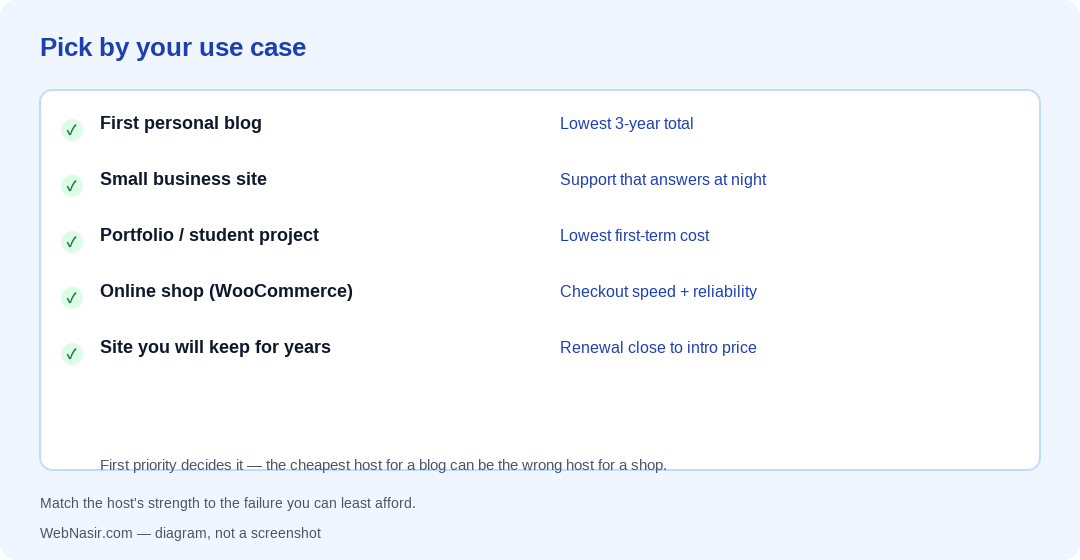
After all the tests, the maths, and the warnings, the choice still comes down to one question: what is the site for? A host that is perfect for a personal blog can be the wrong host for a small shop, and the cheapest host for a student project can be a false economy for a business that takes enquiries by email. The framework below sorts the decision by use case, because use cases have different failure costs. A blog that is down for an hour loses a few readers; a shop that is down for an hour loses orders; a business site whose email stops working loses enquiries it never knows about. The host that is right for you is the one whose strengths line up with the failure you can least afford, at a total cost you can keep paying for three years.
For a first personal blog — the most common buyer of budget hosting — the priorities are simple: the lowest three-year total, a free SSL certificate, a one-click WordPress install, and support that answers beginners without condescension. Speed matters, but a blog with a light theme and compressed images will be fast enough on any of the hosts in the comparison table, so do not pay extra for performance you will not feel. What matters more is the renewal price, because a blog is a multi-year project and the second and third years are where the money goes. Pick the host with the lowest total over three years, take the longest term you are comfortable prepaying after the pre-sales test, and spend the money you saved on the site itself — a proper domain, a clean theme, and the time to write. The host in the table positioned as the lowest intro tier on long terms is the natural starting point here, provided its renewal maths still wins once you extend it past year one.
For a small business site — a shop, a service provider, a local business that takes enquiries — the order of priorities changes completely. Support quality moves to the top, because a business site that is broken is a business that is closed, and the cost of an hour of downtime is measured in lost customers rather than lost readers. Backups move up with it: daily backups you can restore yourself are worth paying for, because the business cannot wait for a support ticket to restore a broken checkout page. Email matters too — if the business email lives on the hosting account, the host's email reliability and the migration rules for that email are part of the decision, not an afterthought. And the renewal price matters more, not less, because a business site cannot be moved casually every year without risking its search ranking and its customers' bookmarks. For this buyer, the hosts in the table described as support-led or business-oriented deserve a longer look, and a slightly higher three-year total is a fair price for a host that answers at night and restores a backup in minutes.
For a portfolio, a student project, or a site that may not last a year, the logic inverts again: the cheapest first term is genuinely the right target, because the total cost of ownership is one term, not three, and the renewal price is irrelevant if the site will be gone before it arrives. The priorities are a low upfront payment, a free SSL certificate, and an easy cancellation, with the money-back window as the safety net. Take the shortest term that still carries the discount, test the host properly in the first month, and keep the site's content backed up from day one so that the project can move or close without losing the work. For a shop that will take payments, add two non-negotiable requirements to any of the above: the host must support the payment setup you intend to use without extra cost, and the checkout must be fast and reliable under traffic, because a slow checkout is an abandoned cart. If the shop is built on WooCommerce, the resource limits matter more than for a plain blog — a shop does more work per visitor — and that is the one case where starting one tier higher than the cheapest plan is usually money well spent.
| Your site | First priority | Second priority | Watch out for |
|---|---|---|---|
| First personal blog | Lowest 3-year total | Free SSL + 1-click WordPress | Renewal shock in year two |
| Small business site | Support that answers at night | Daily backups you can restore | Email living on the same account |
| Portfolio / student project | Lowest first-term cost | Easy cancellation | Long prepay on a short-lived site |
| Online shop (WooCommerce) | Checkout speed + reliability | Resources for a shop, not a blog | Cheapest tier struggling under orders |
| Site you will keep for years | Renewal close to intro | Support-led host | Sale price that hides a steep renewal |
The buying checklist and the renewal-day routine
Everything in this guide compresses into a short checklist you can run through in ten minutes before you pay. It is worth printing, or copying into a note, because the moment of purchase is the moment when the banner price is most persuasive and the fine print is least read. Work through it in order, and do not pay until every line has an answer you have seen with your own eyes — not an answer you assume, and not an answer a review gave you. The checklist is deliberately boring: there are no clever tricks in it, only the small verifications that separate a purchase you will be glad about in three years from one you will regret in thirteen months. If a host fails a line, that is not necessarily a reason to reject it — it is a reason to know what you are accepting, and to cover the gap yourself before the site goes live.
The first half of the checklist is the purchase itself: the three-year total calculated from the checkout page, the renewal price seen in writing, the tax line understood, the add-ons unticked, the refund window noted, the backup frequency and retention confirmed, the restore method checked, the server location confirmed as near your readers, and the pre-sales support question answered well. The second half is the first day after purchase: SSL switched on and forced across the whole site, a backup plugin installed and sending copies off the host, caching switched on, images compressed, the free uptime monitor set up, and the admin credentials stored somewhere safe. None of these steps is difficult on its own; together they are the difference between a site that is protected from its first day and one that runs unprotected for a year until the first problem exposes every gap at once.
The final habit is the one this guide has mentioned three times, because it is the one that saves the most money: the renewal routine. On the day you buy, set two calendar reminders — one a month before the renewal date, and one a week before — and write the renewal price on the reminder itself, so that future-you does not have to go looking for it. When the first reminder arrives, do three things: check whether the renewal price has changed, check whether the site still needs the plan it is on or could move down a tier, and check whether another host is now genuinely cheaper on a three-year total — not on a banner. If the answer is to stay, renew with your eyes open. If the answer is to move, you have a month to migrate properly, in the safe order, with the old account still running. A hosting purchase is not a decision you make once; it is a decision you revisit once a year, for five minutes, with the numbers in front of you. That is the whole secret of buying cheap hosting without ever being trapped by it.
- Before paying: 3-year total, renewal in writing, tax line, add-ons unticked, refund days, backup frequency + retention, restore method, server location, support test passed.
- Day one: SSL forced, backup plugin sending copies off the host, caching on, images compressed, uptime monitor running.
- On purchase day: set renewal reminders for one month and one week before, with the renewal price written on them.